Types
Stable categories such as Books, Newspapers, Exhibitions or Business Cards.
 RETALLS / CLIPPINGS
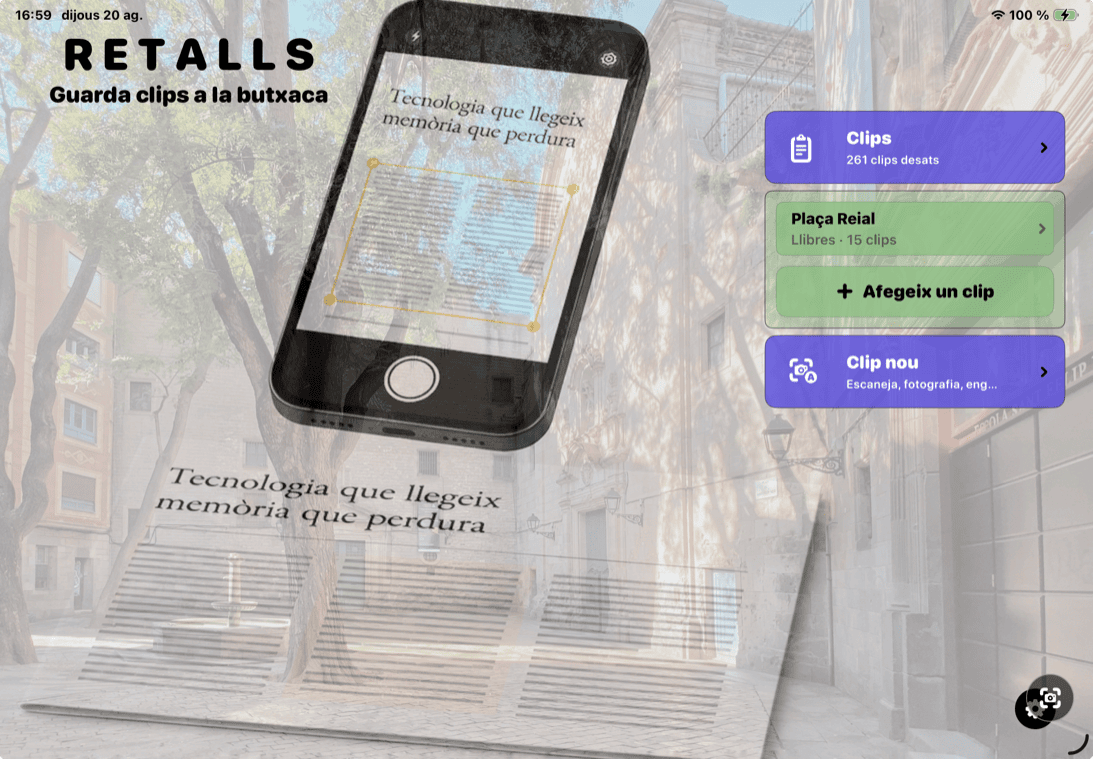

Scan it. Photograph it. Organize it. Find it again. Keep useful fragments from books, newspapers, exhibitions, labels and everyday life—with their source intact.
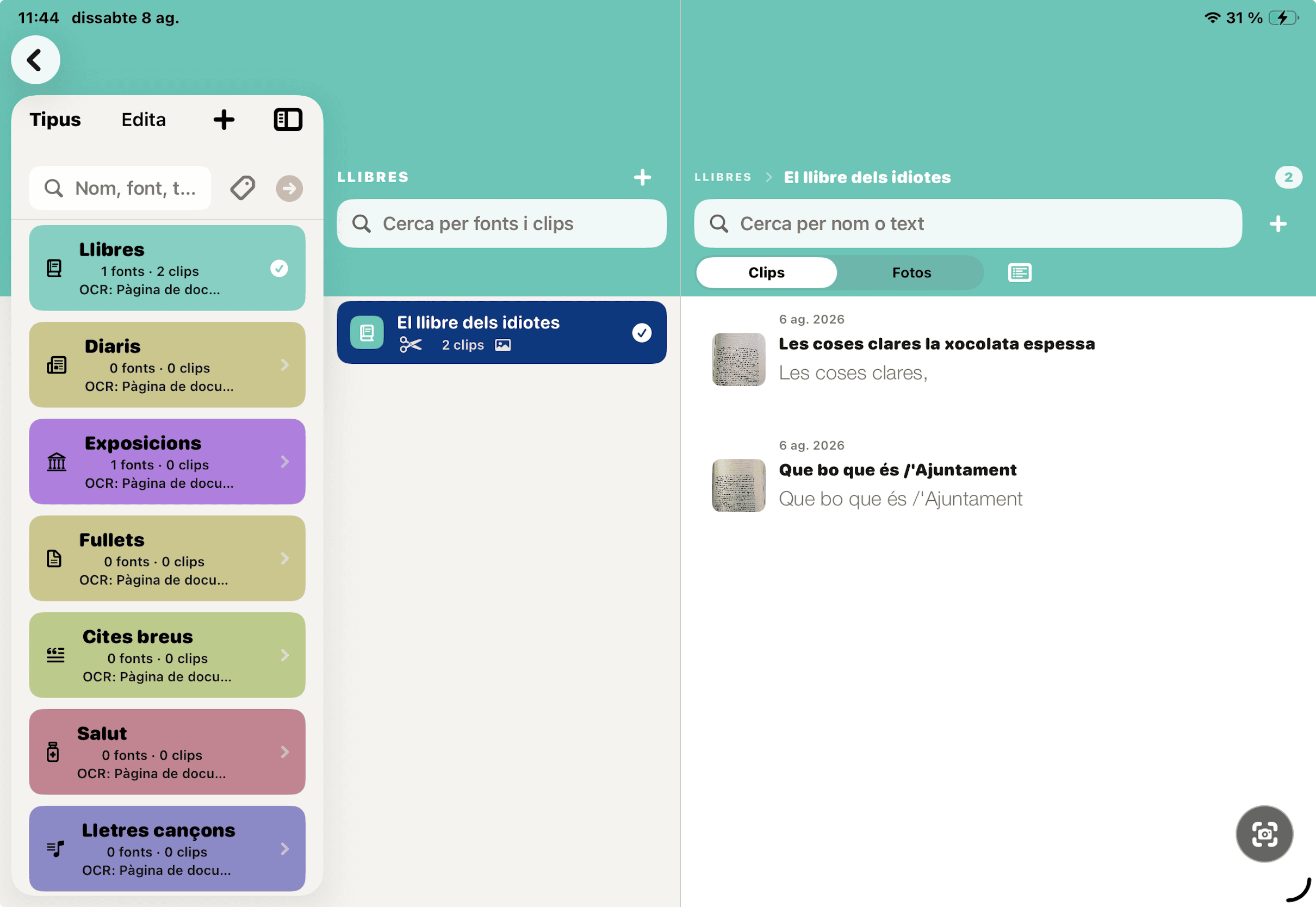 iPad
iPadStable categories such as Books, Newspapers, Exhibitions or Business Cards.
The book, issue, exhibition or document each fragment came from.
The text or image worth keeping, ready to read, edit, search and share.
For example Books → The Name of the Rose → a paragraph you want to remember
Choose a profile that matches the material, then use the focused tools only when you need them.
01 / 05
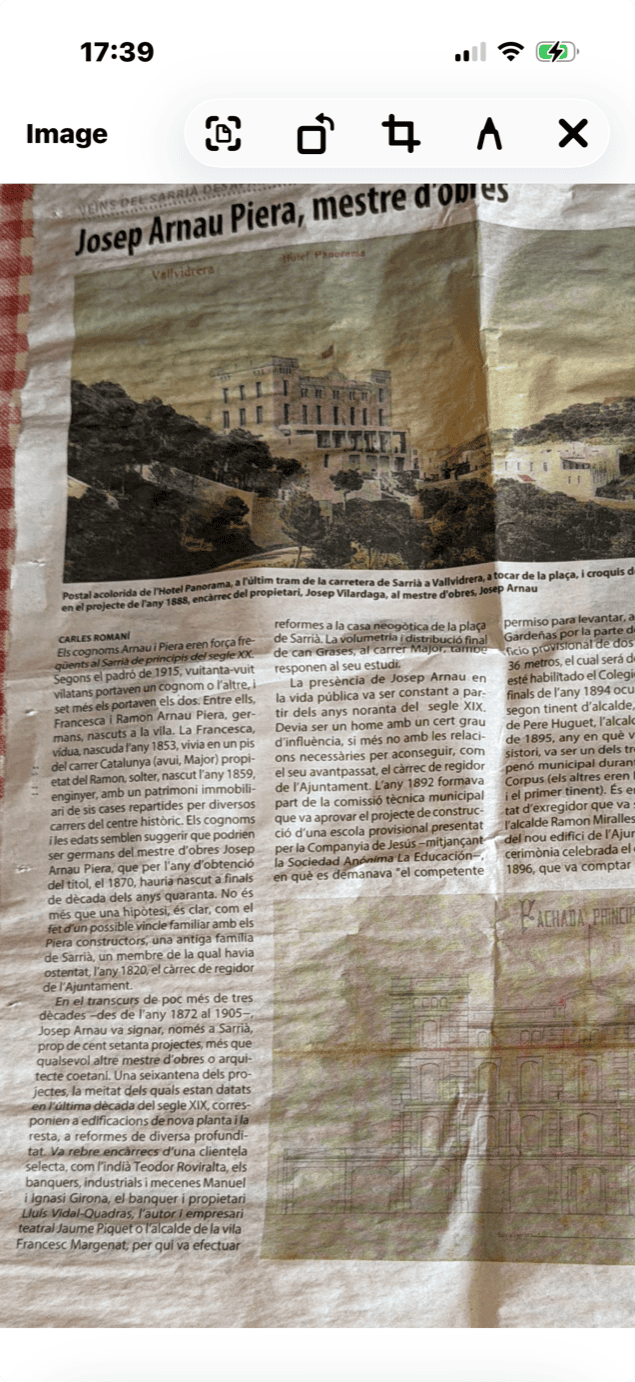
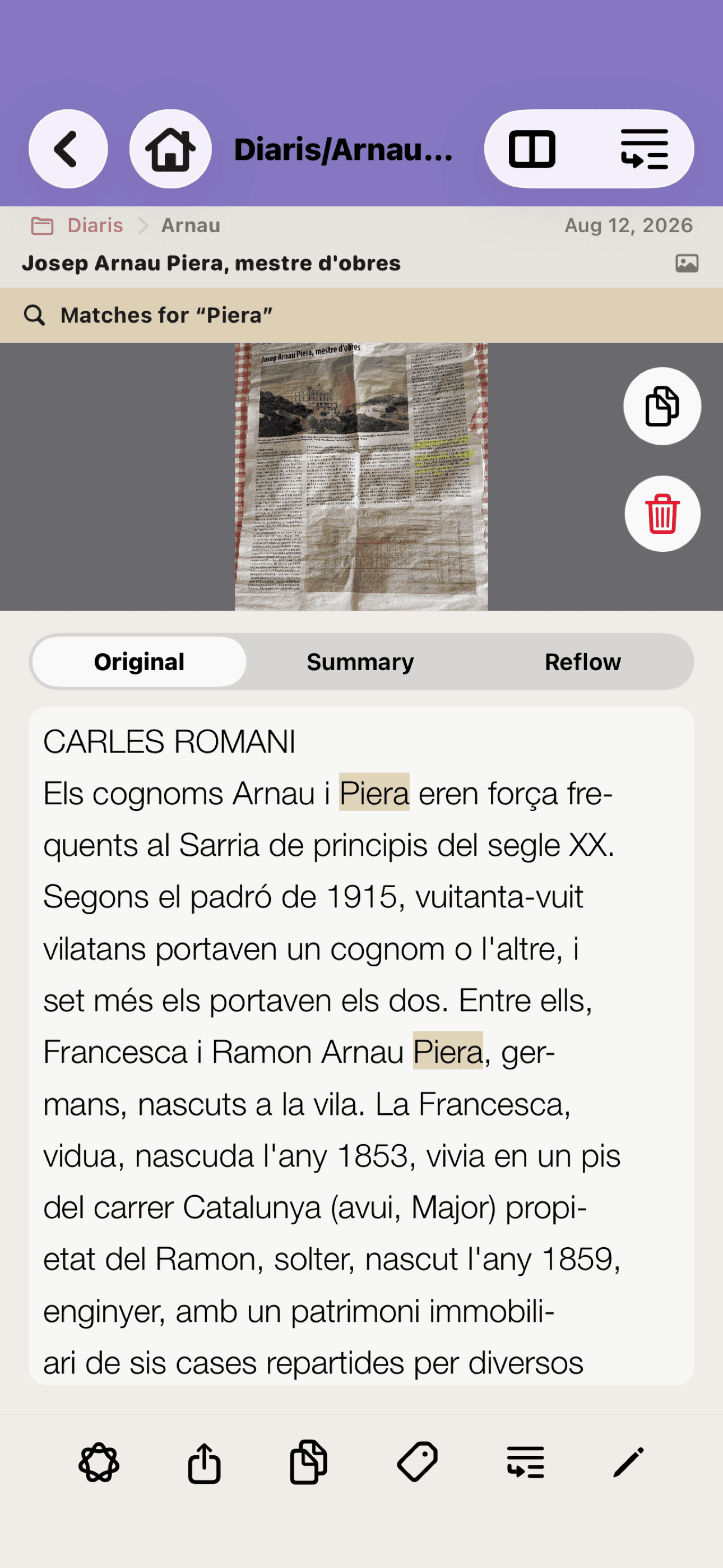
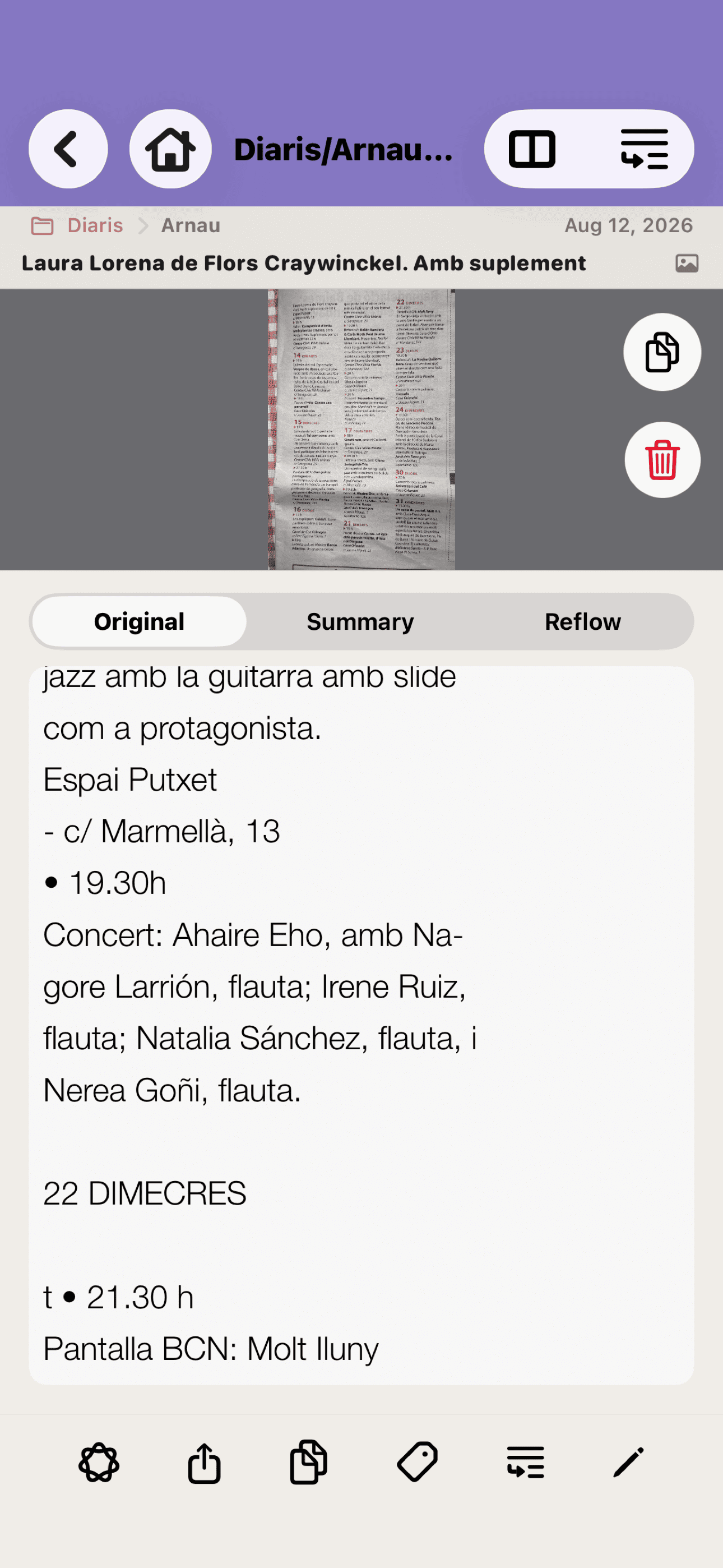
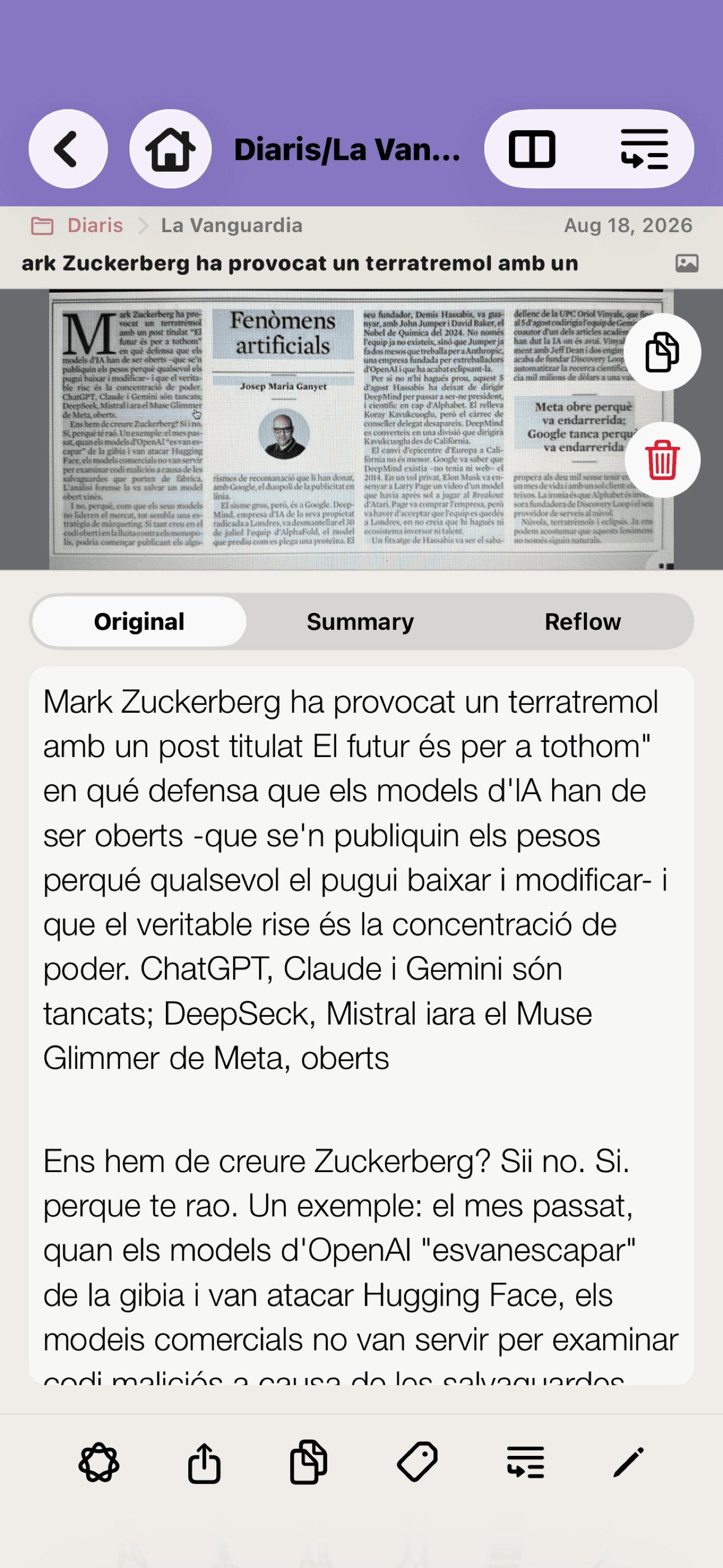
Recognize narrow columns, headlines and captions in reading order. The image-cleaning pre-process can improve uneven light, weak contrast, curved paper and quick captures.
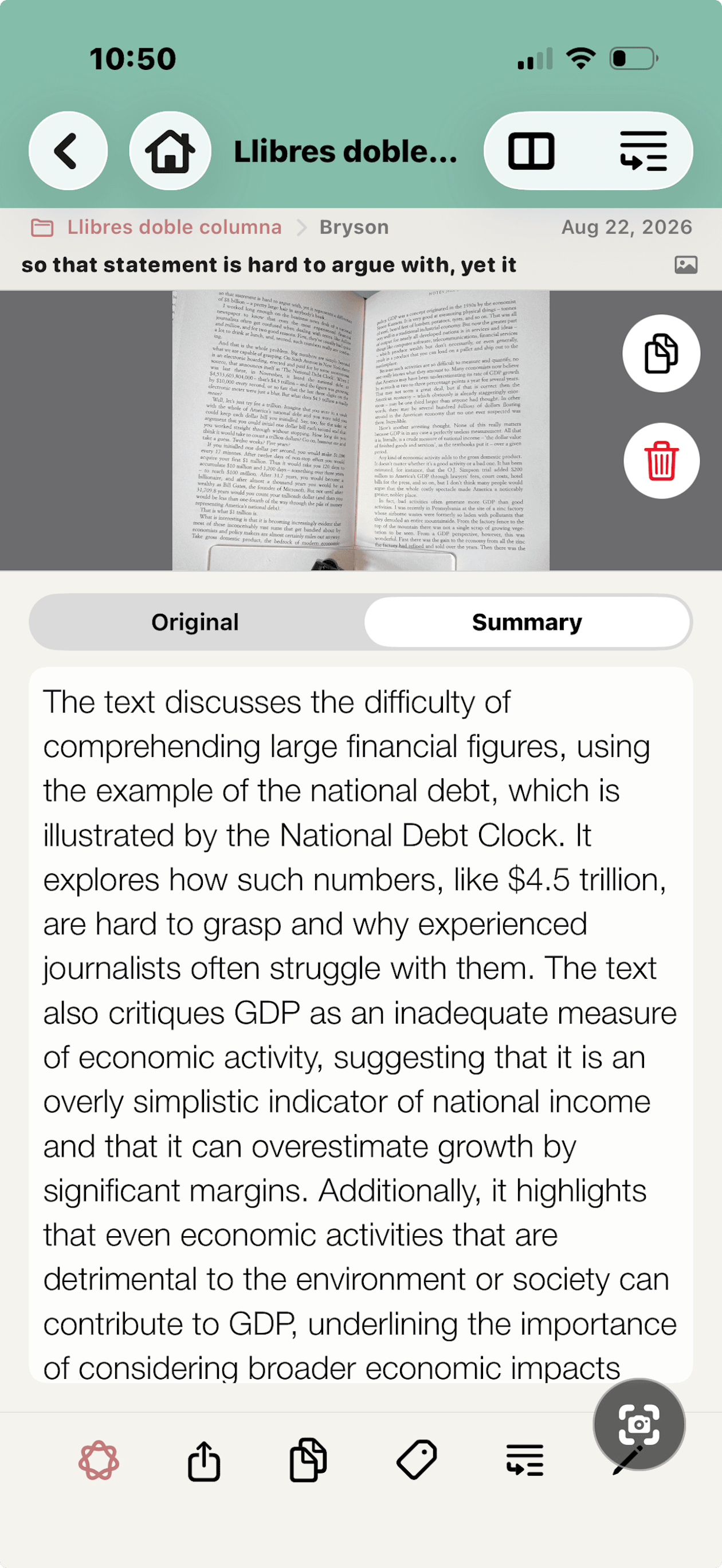
For a long or difficult article, scan smaller sections and merge the resulting Clips instead of forcing one perfect photograph.
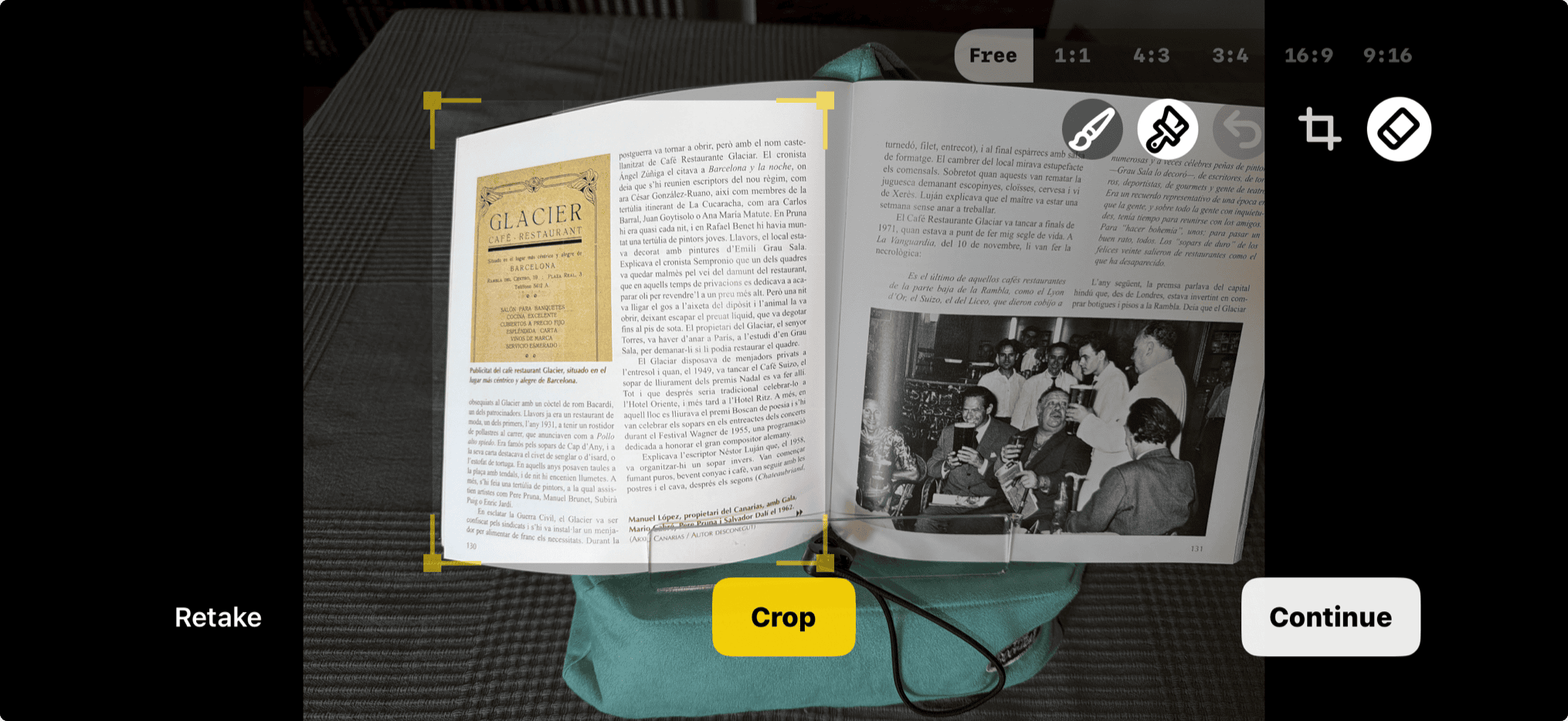
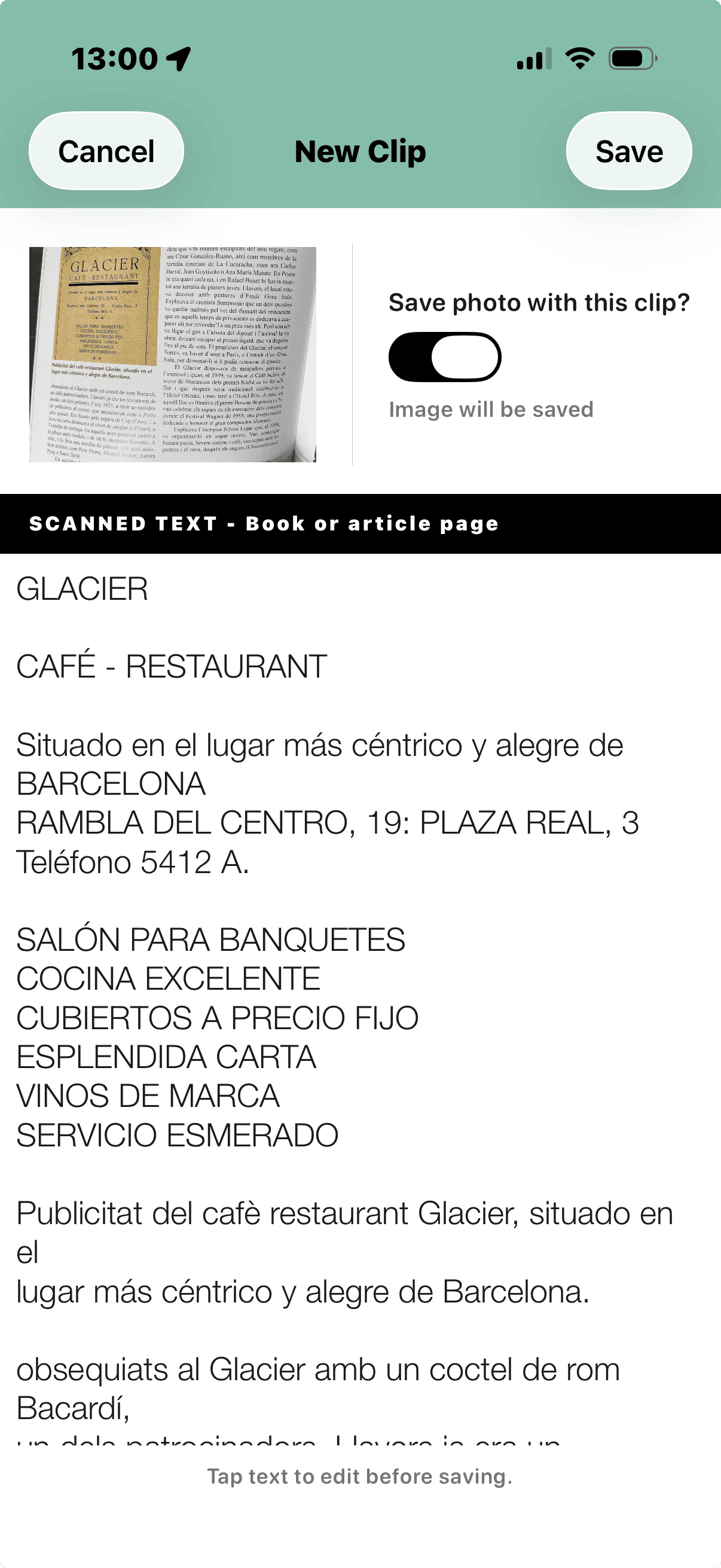
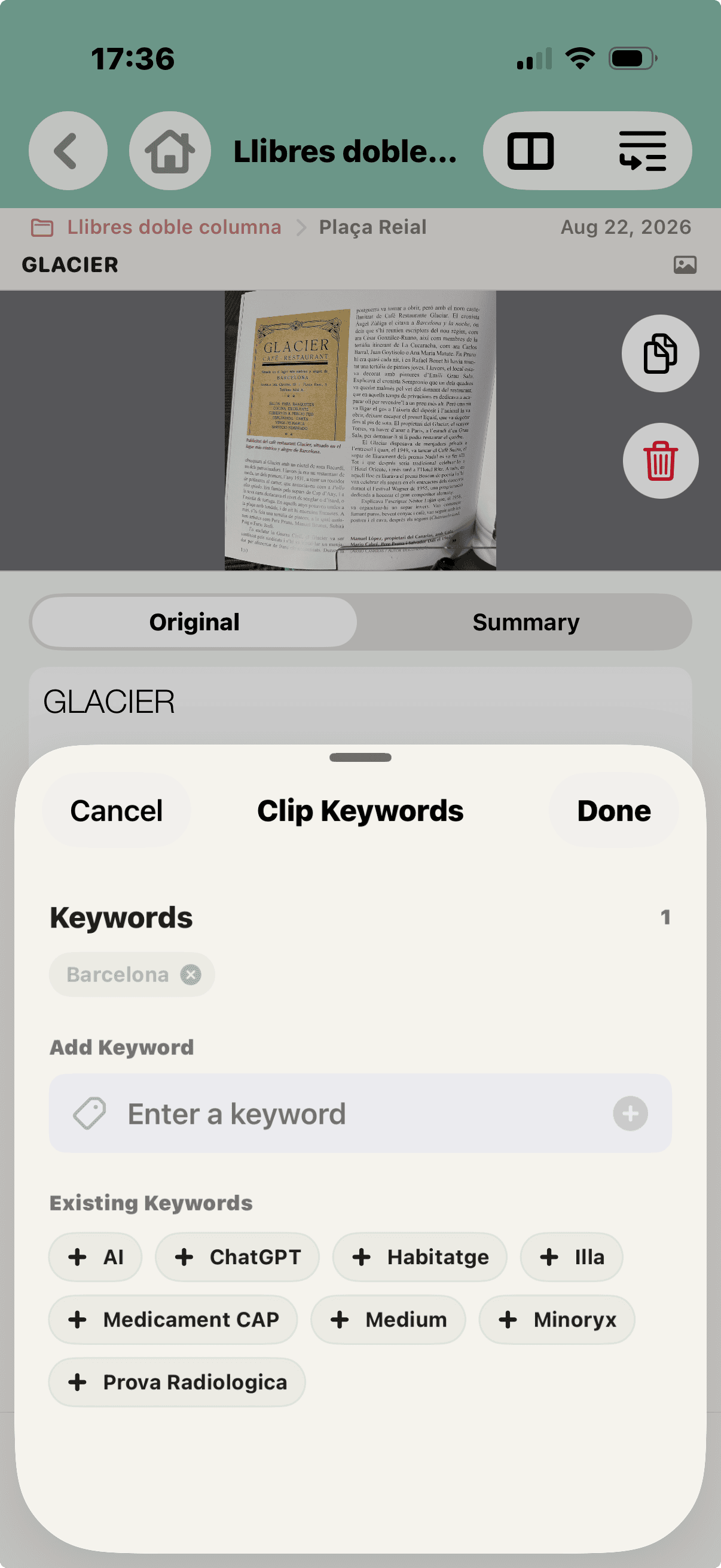
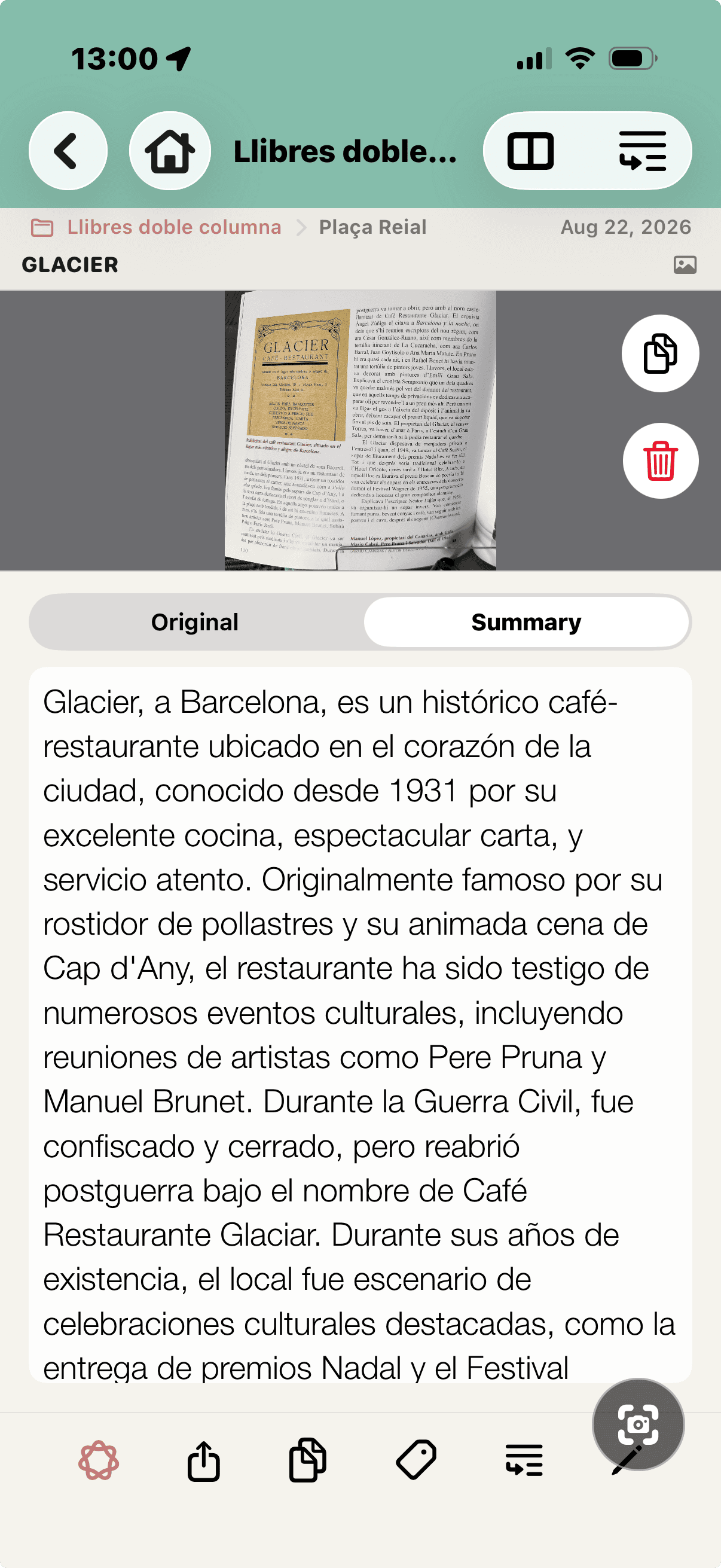
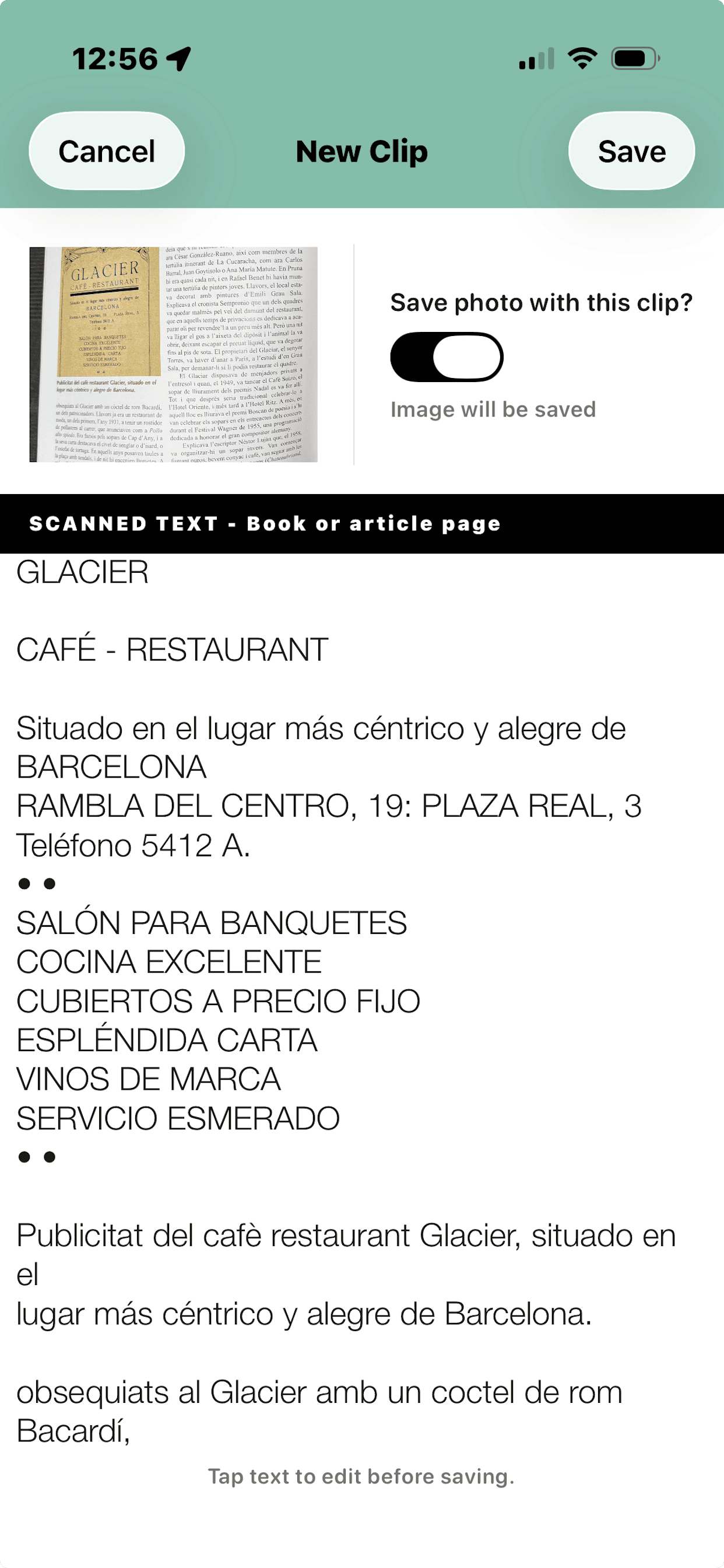
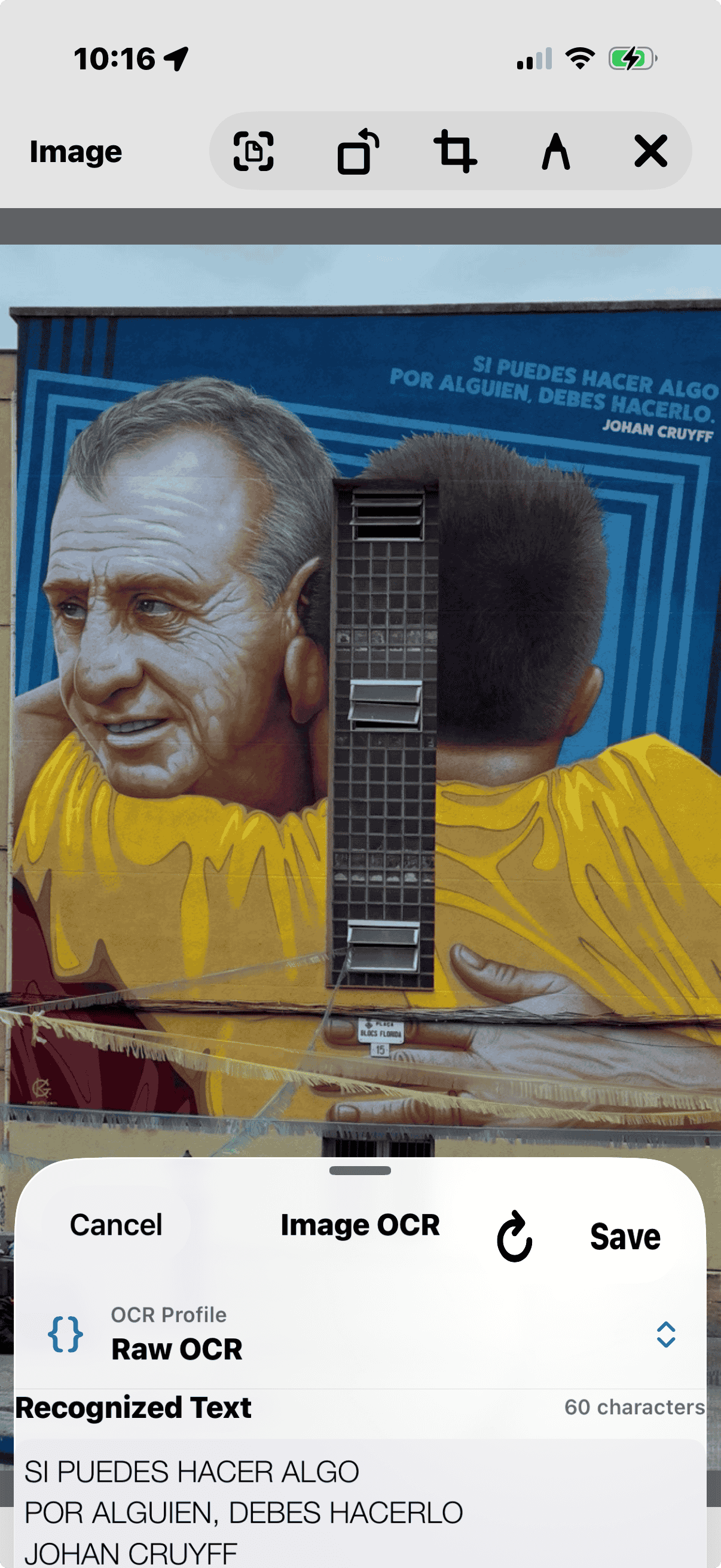
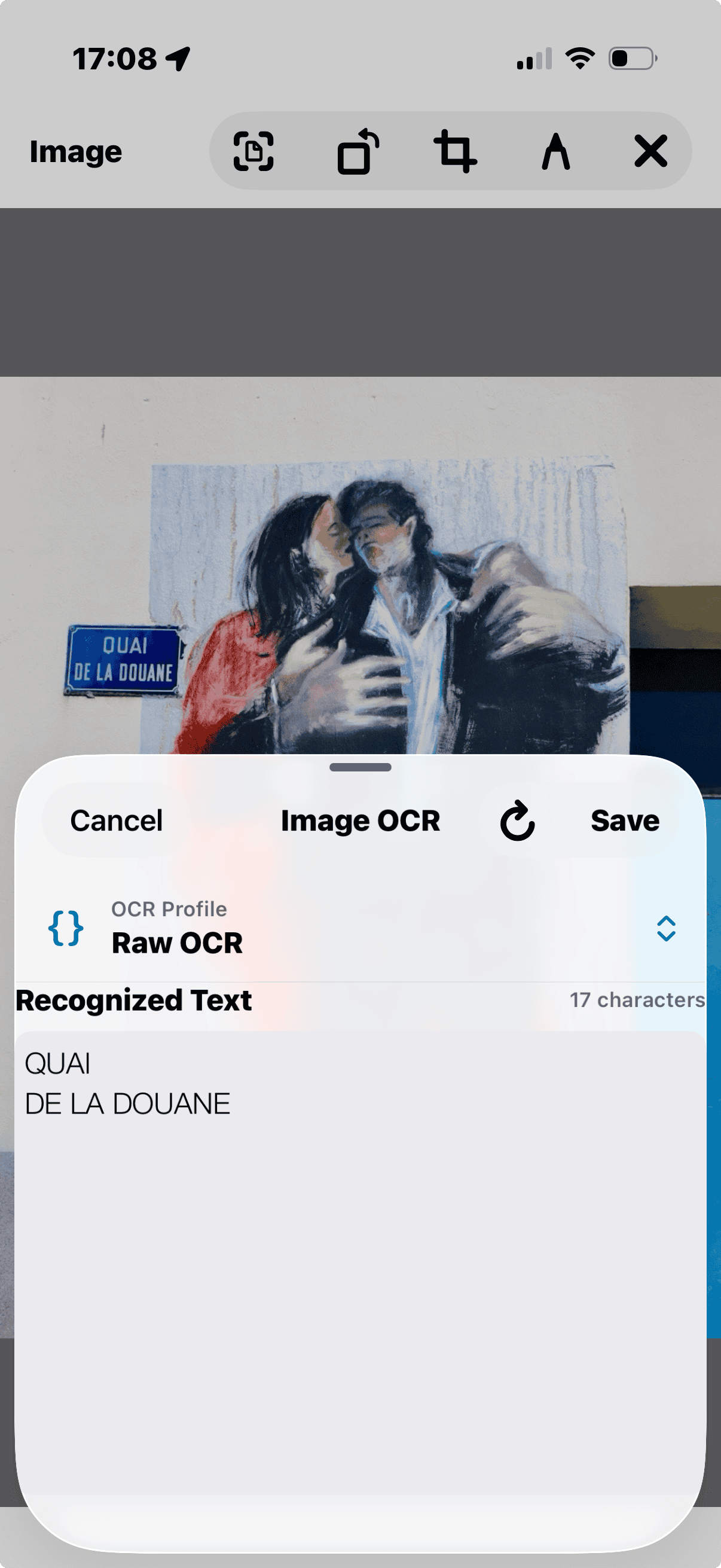
Book pages can mix columns, captions, photographs and page furniture. OCR may even detect words printed inside a photo or illustration.
02 / 05
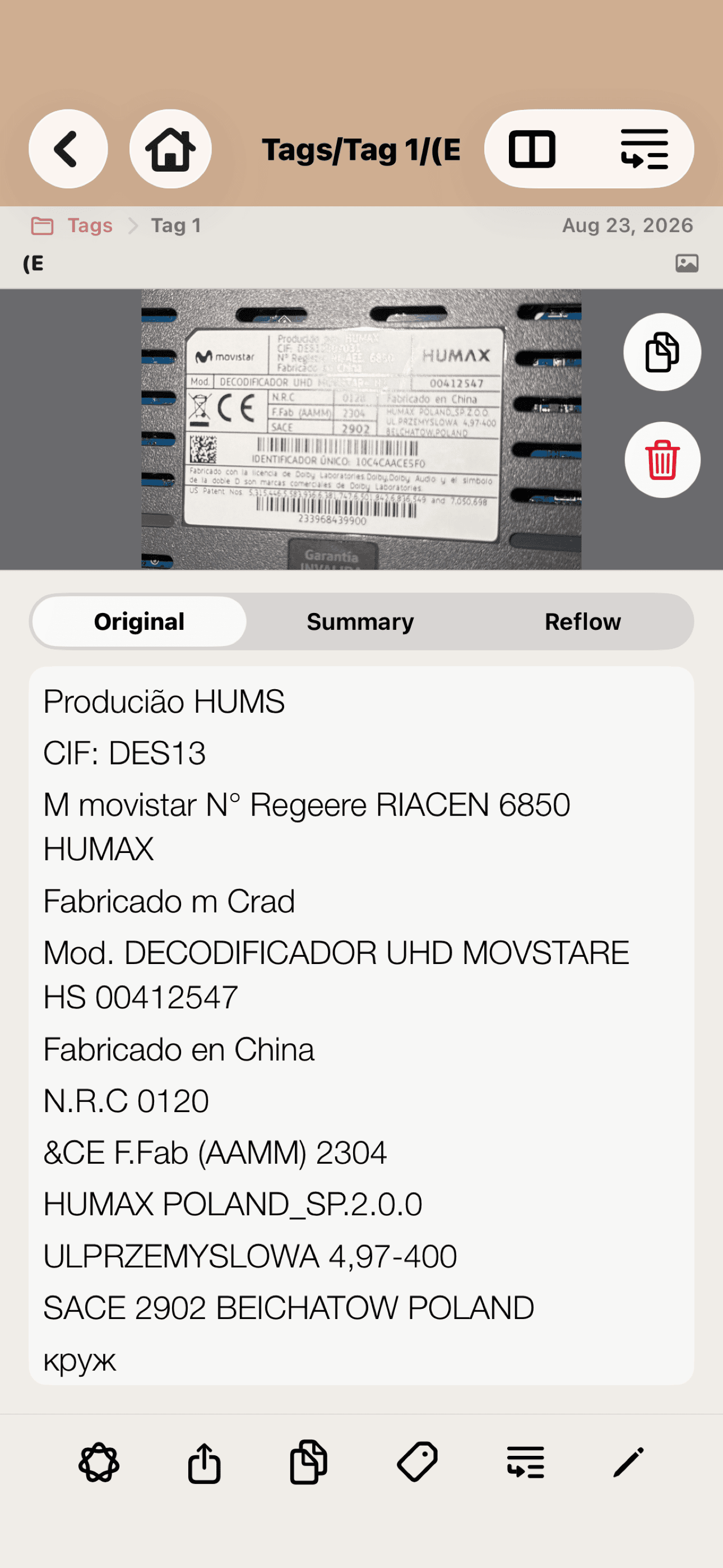
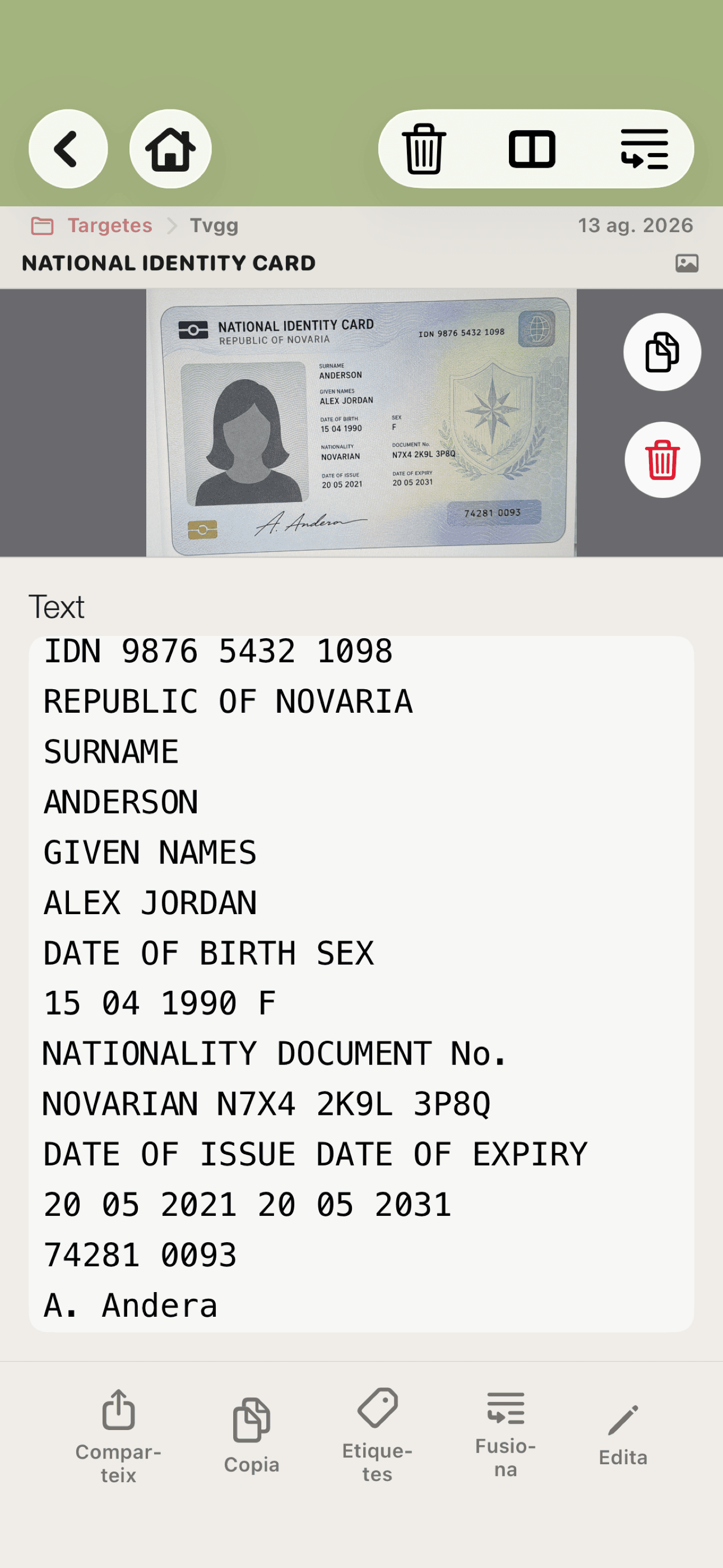
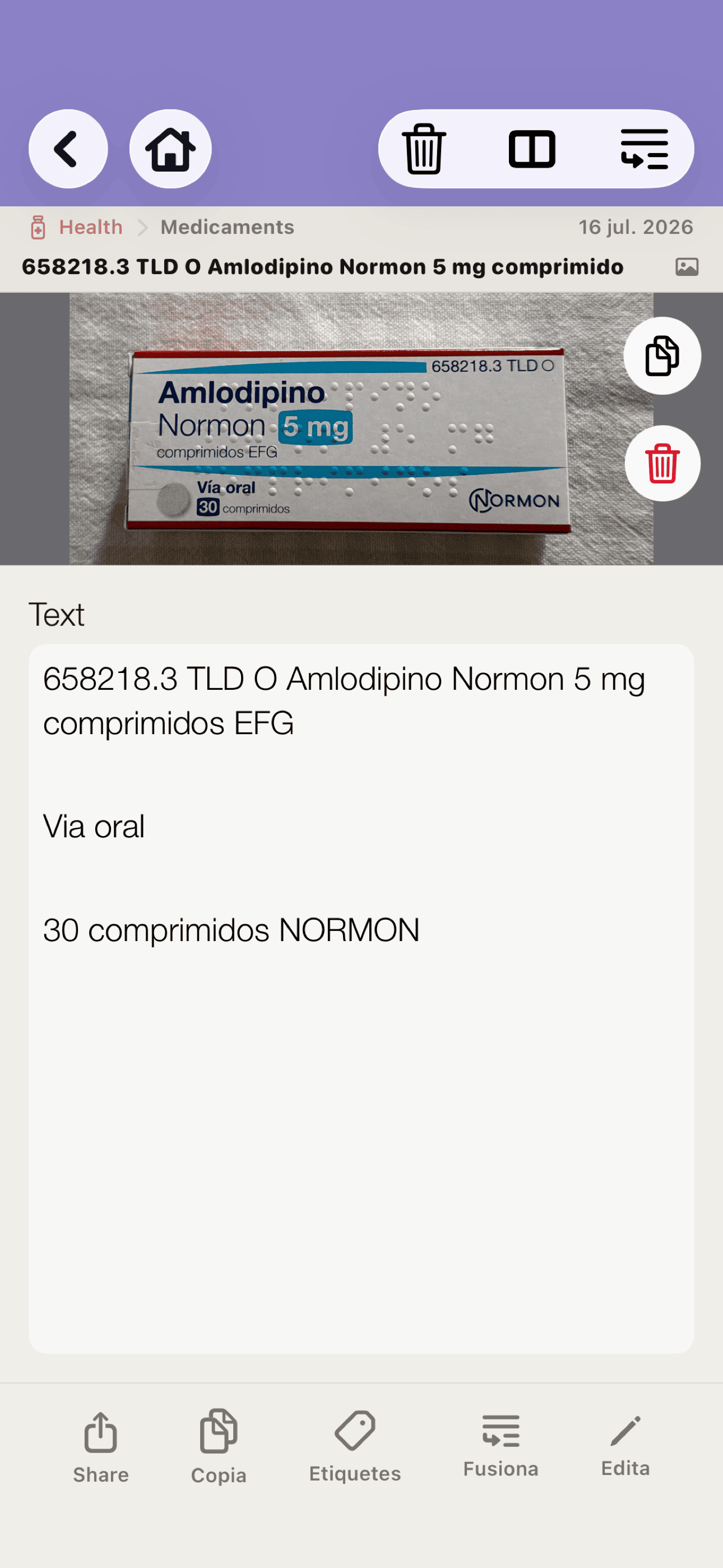
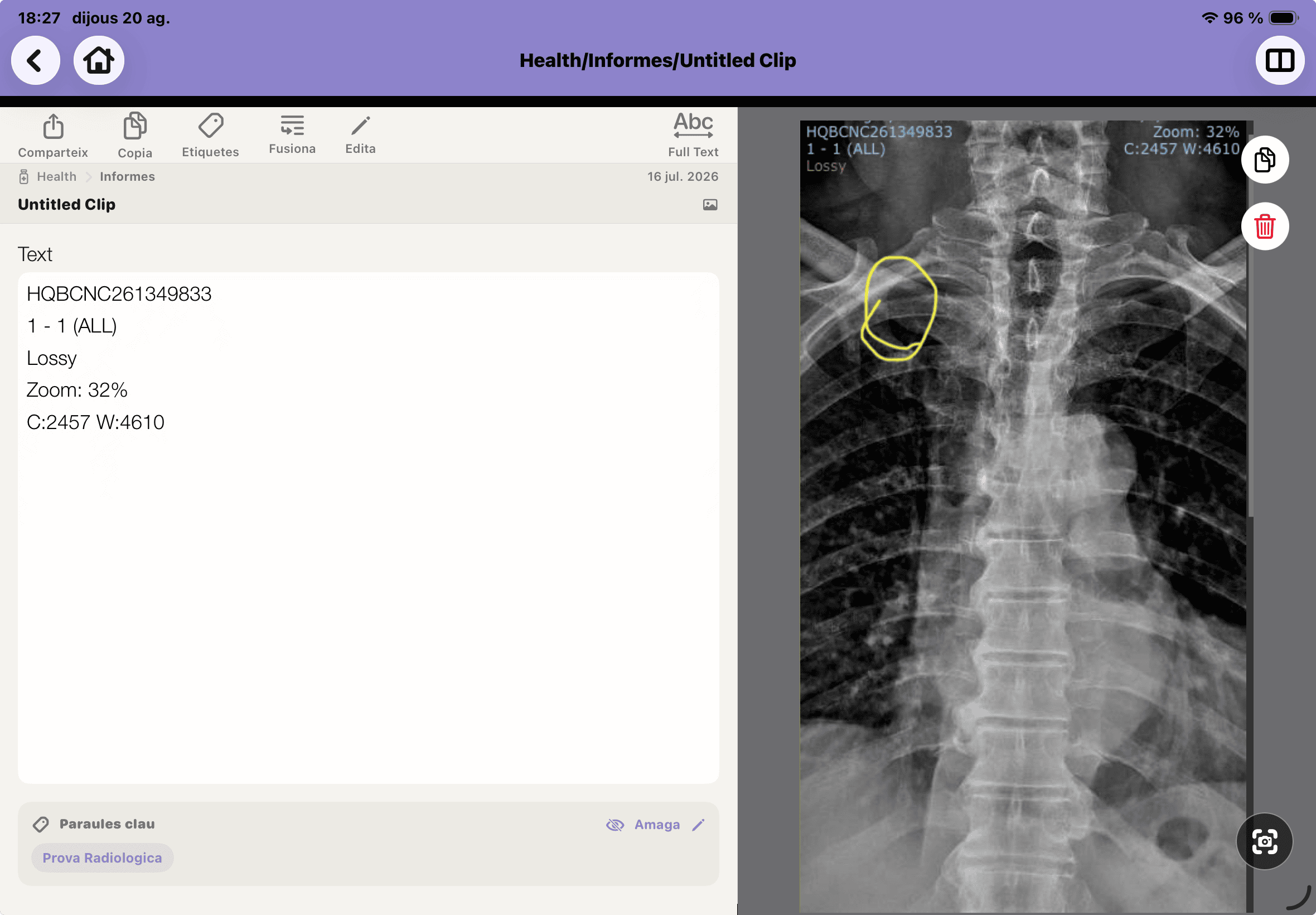
Draw directly on an image.
03 / 05
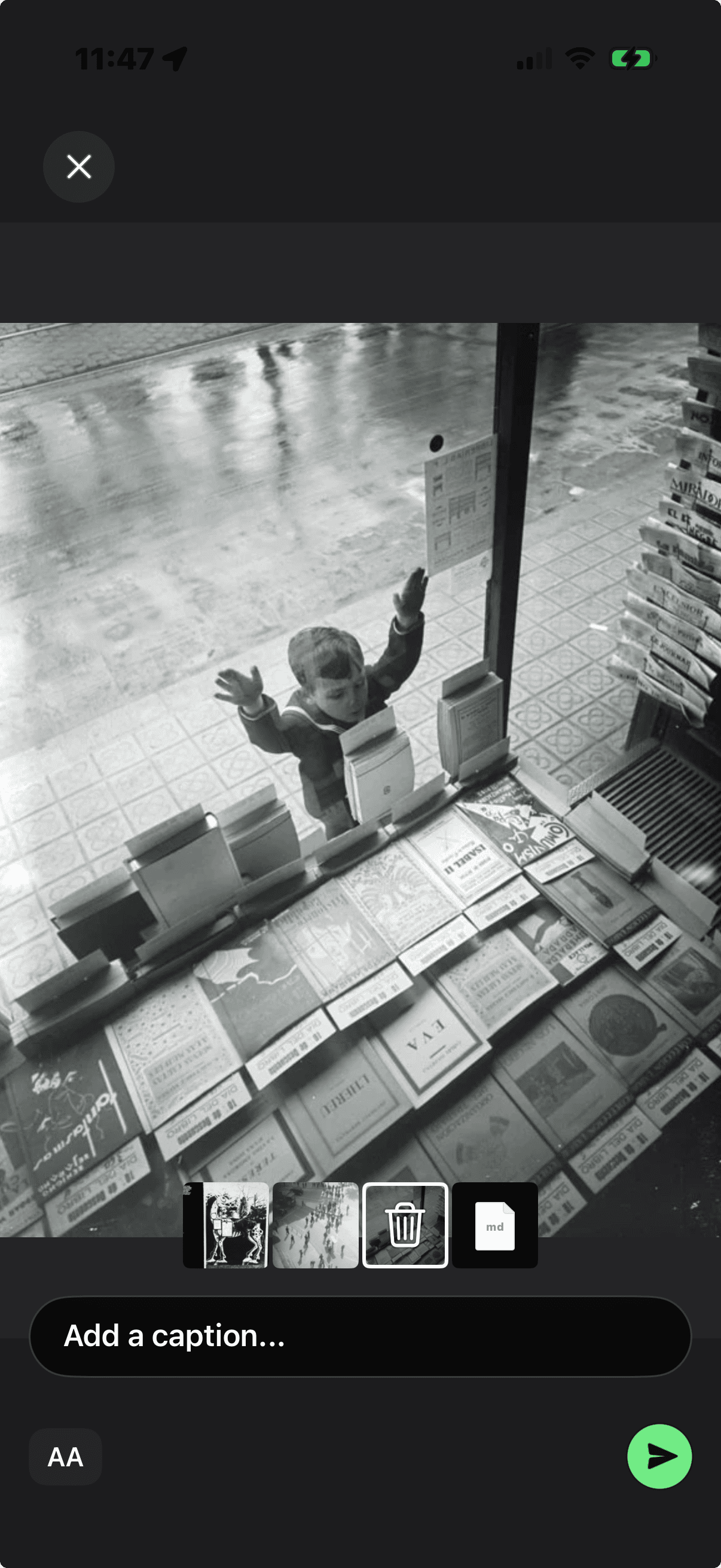
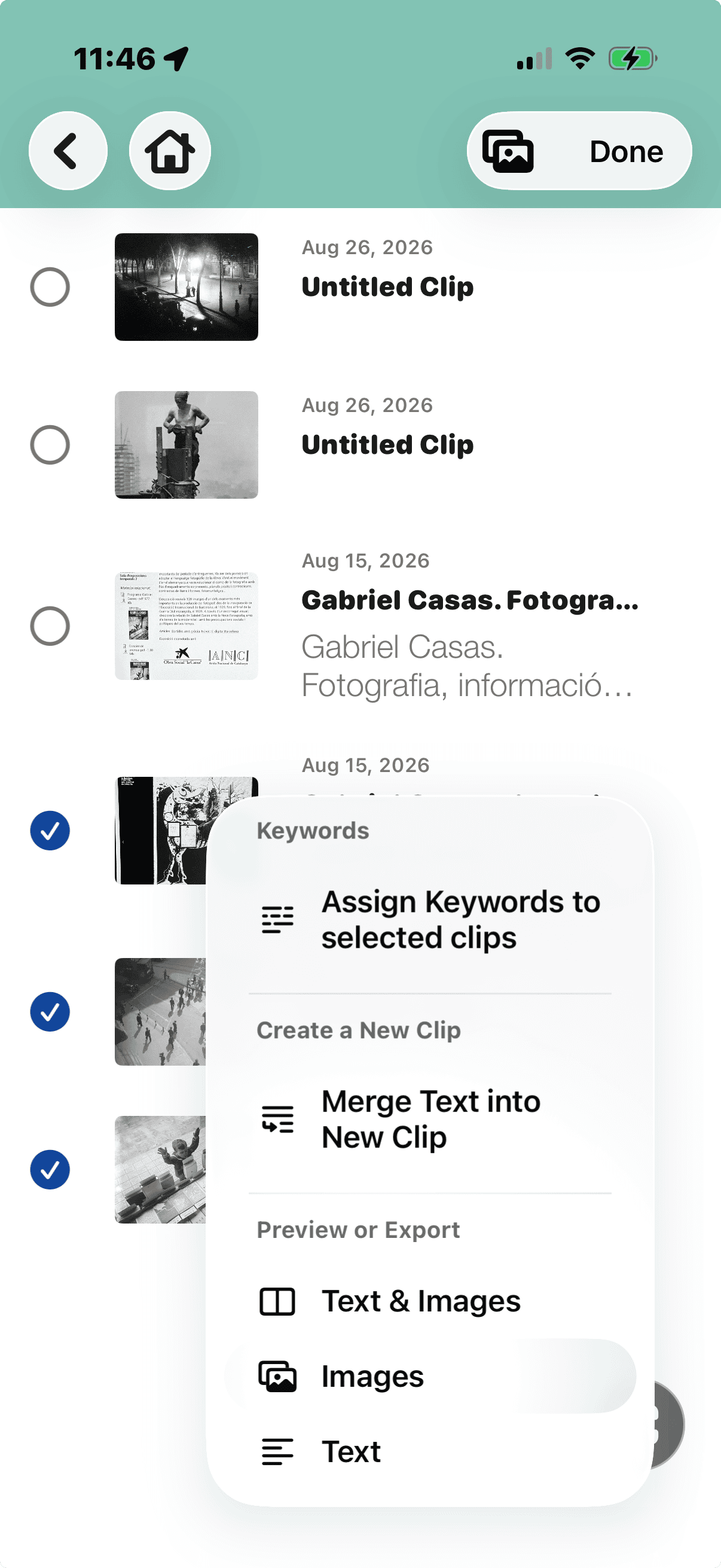
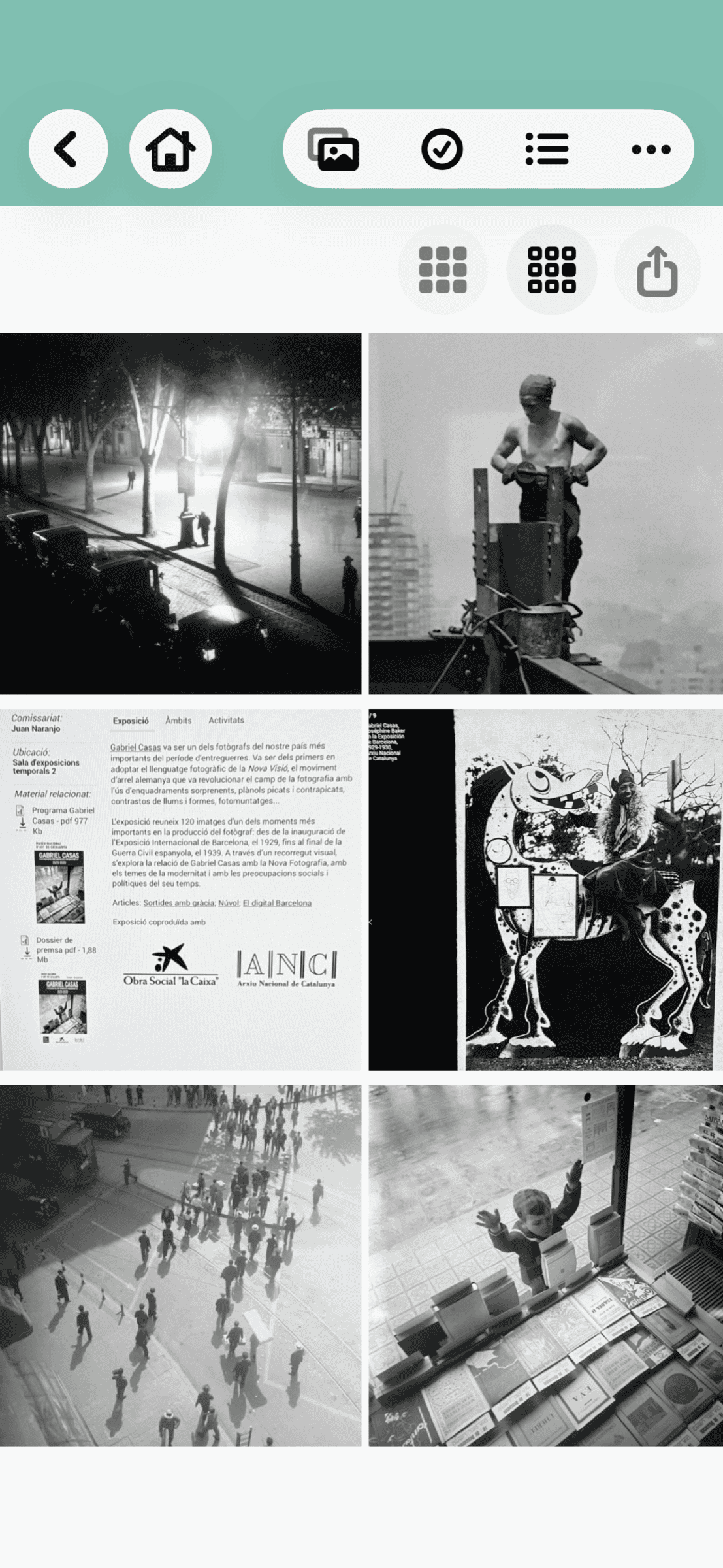
Photo body
04 / 05
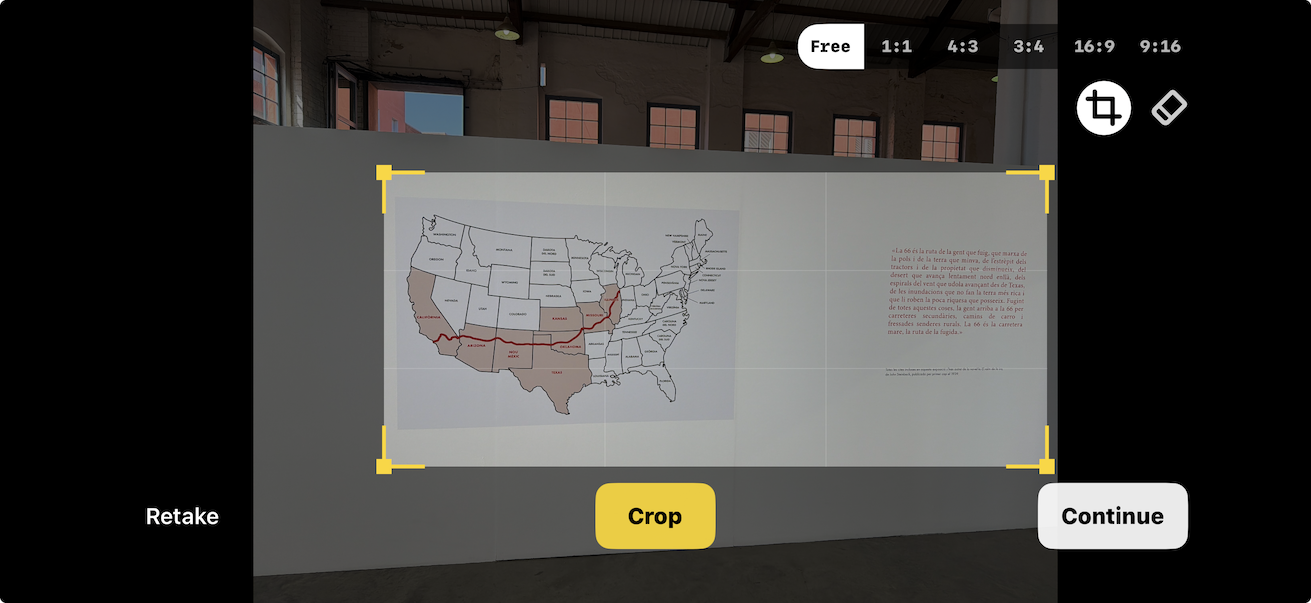
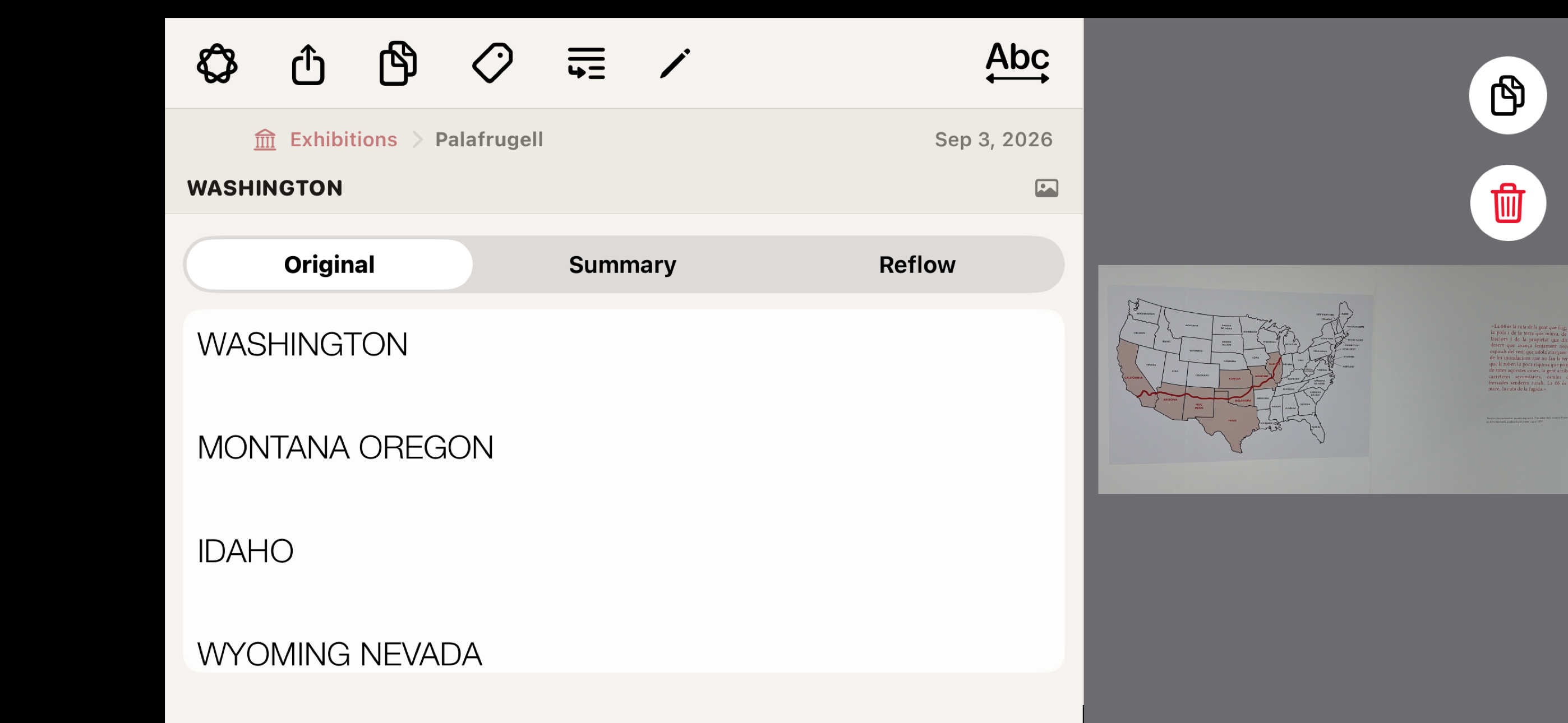
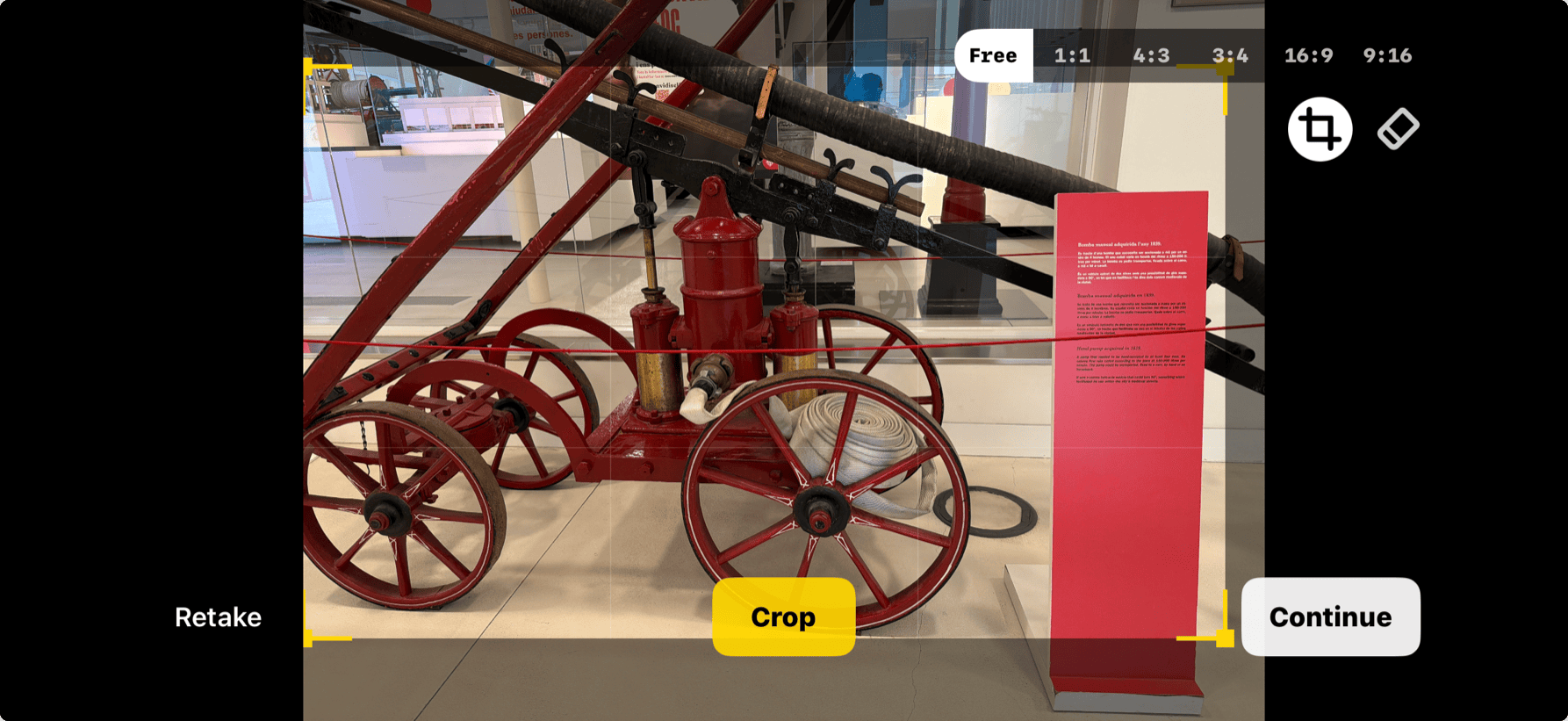
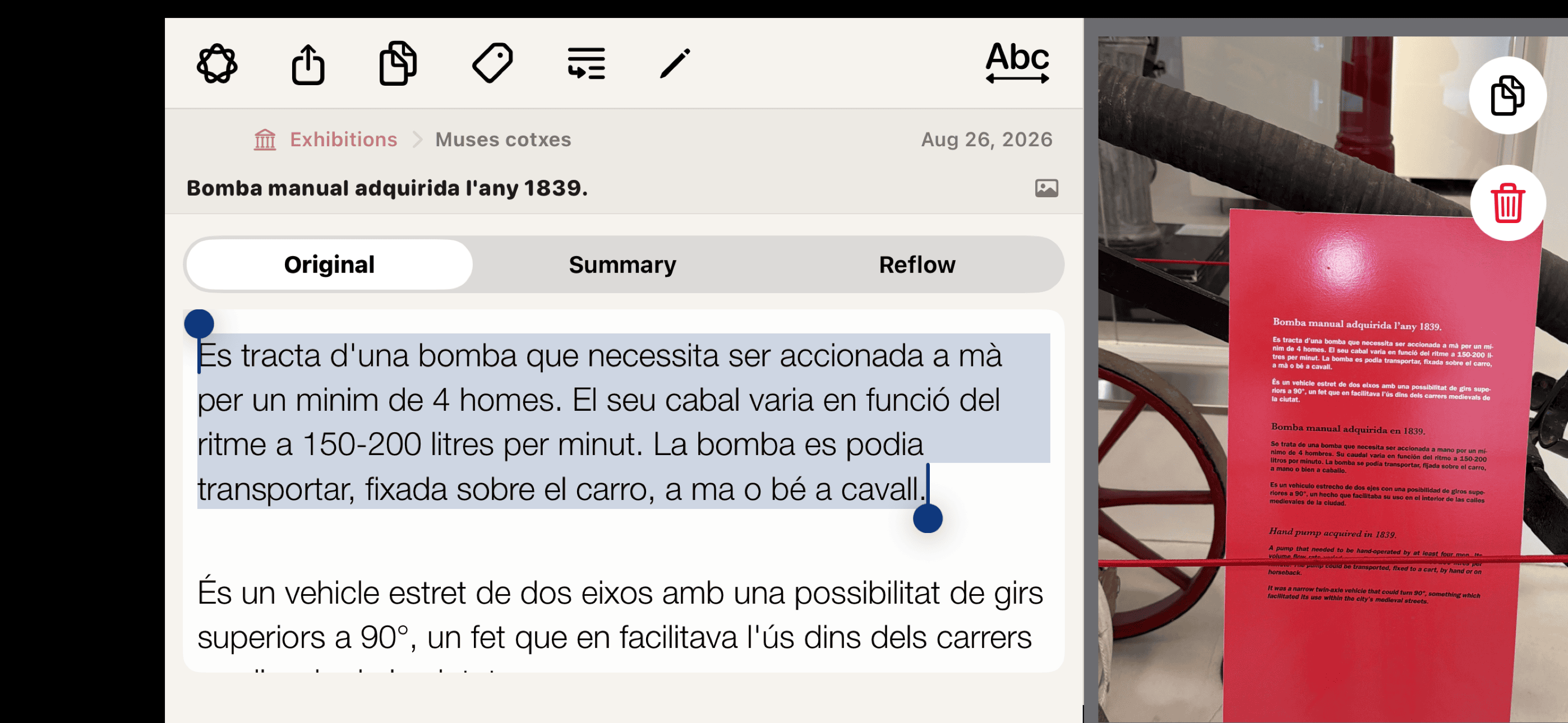
Create a Source for the exhibition, then keep wall panels, artwork labels, quotations, dates, object photos and personal notes together. Short captions suit Product Label; larger panels suit Document Page.
05 / 05
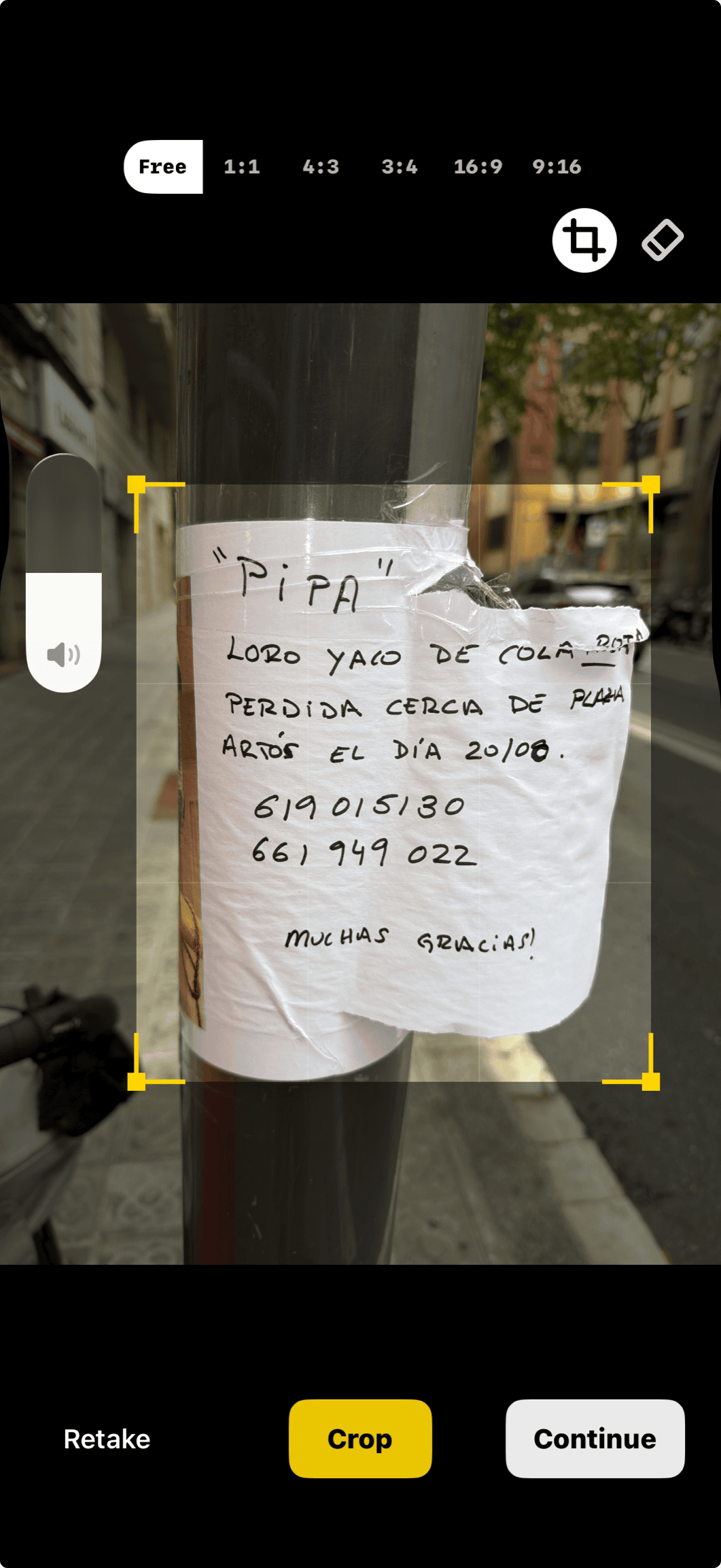
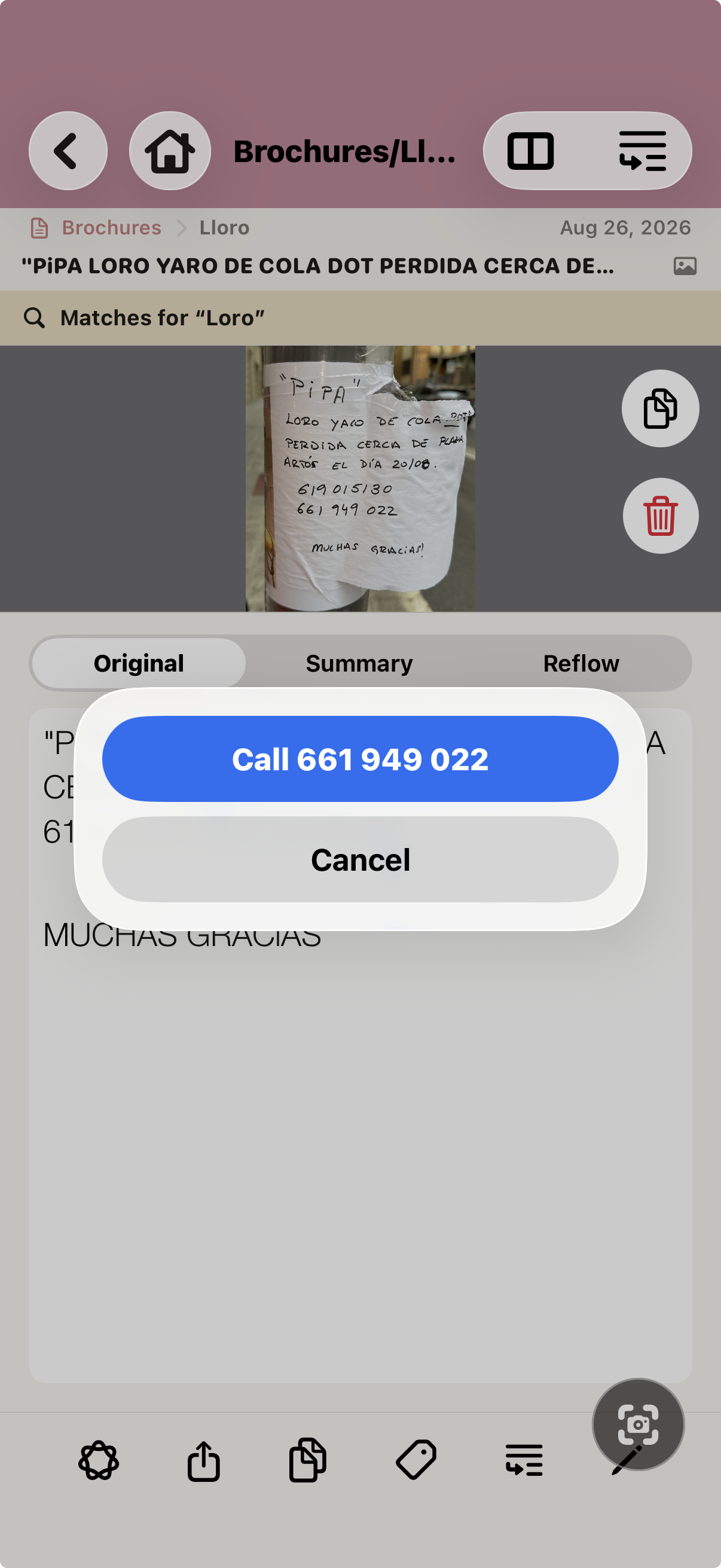
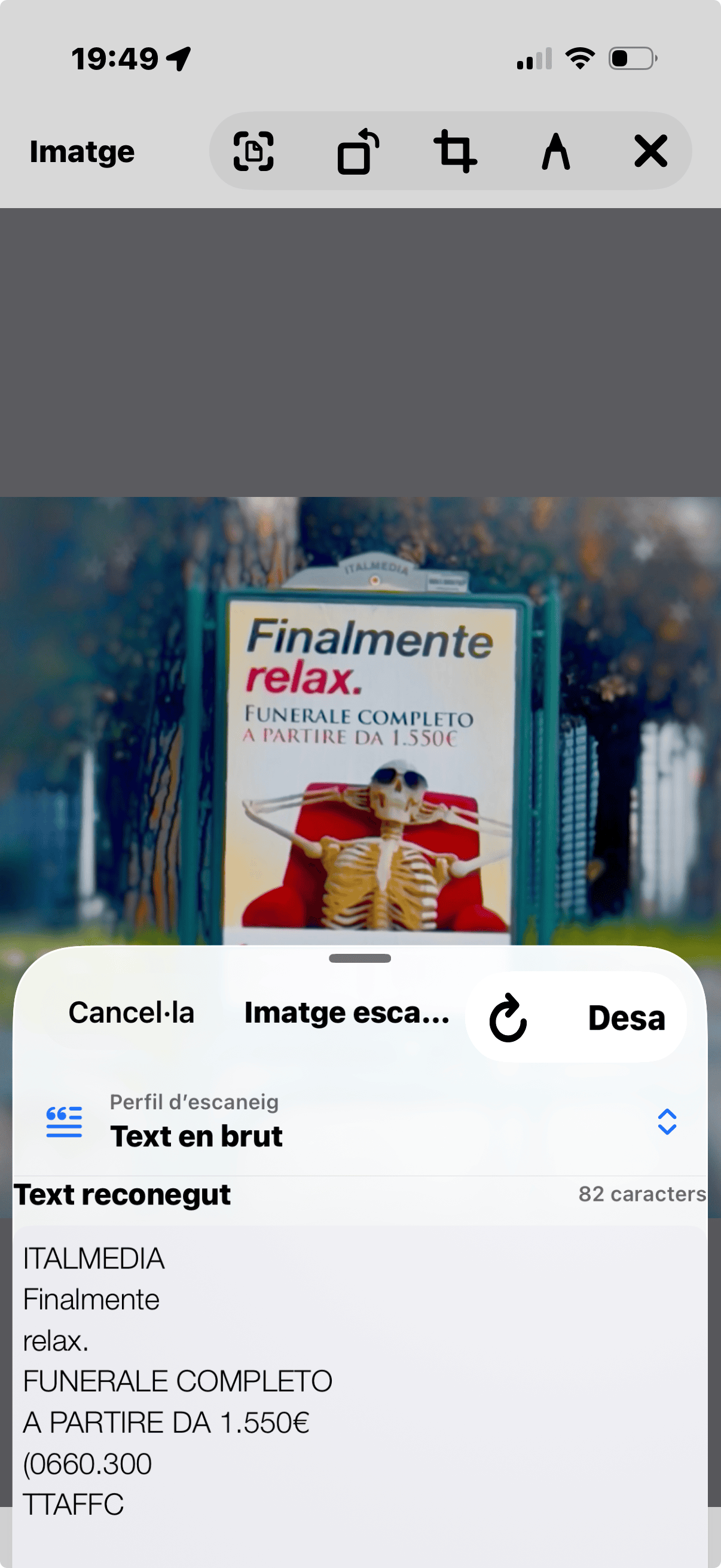
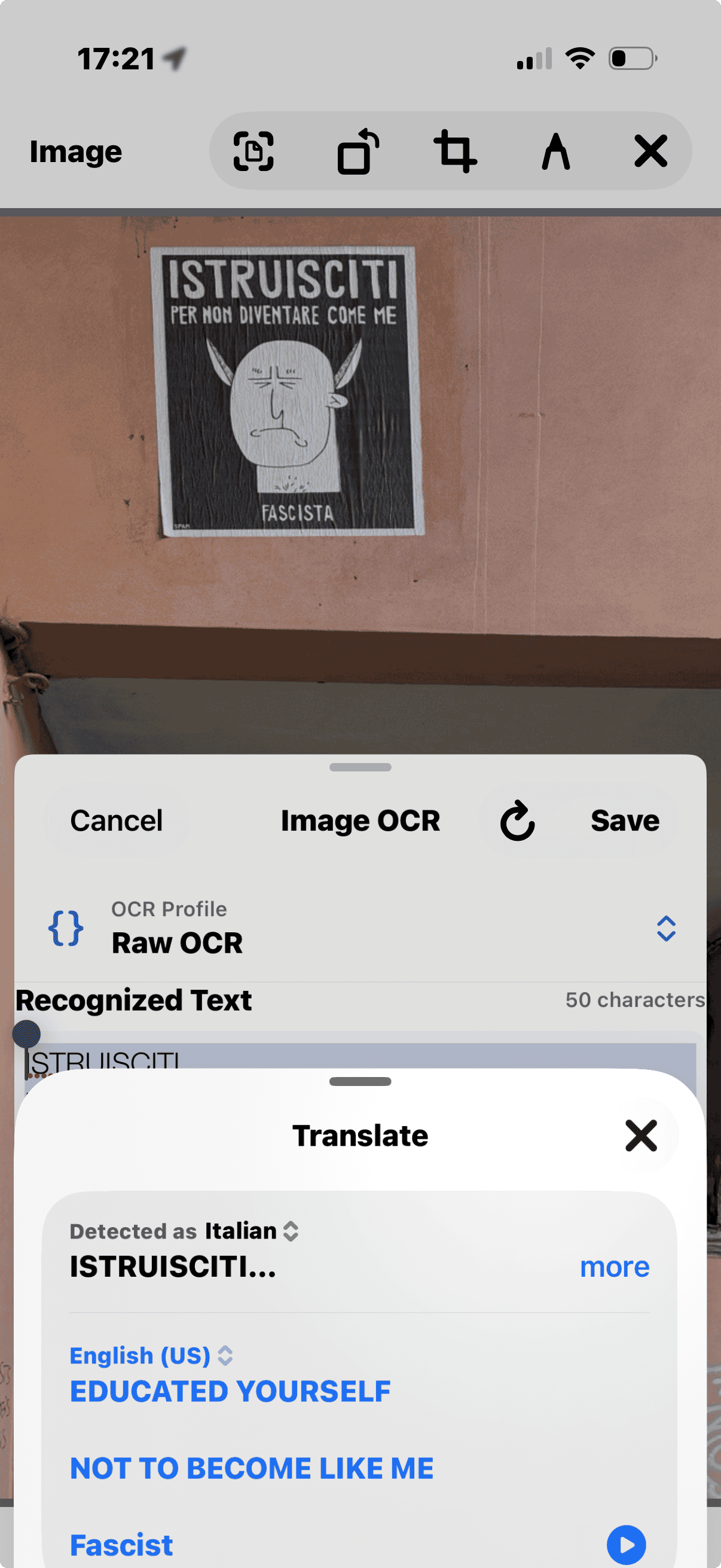
Save a poster, shop sign or public notice as a Photo, scan its wording, or retain both image and text.
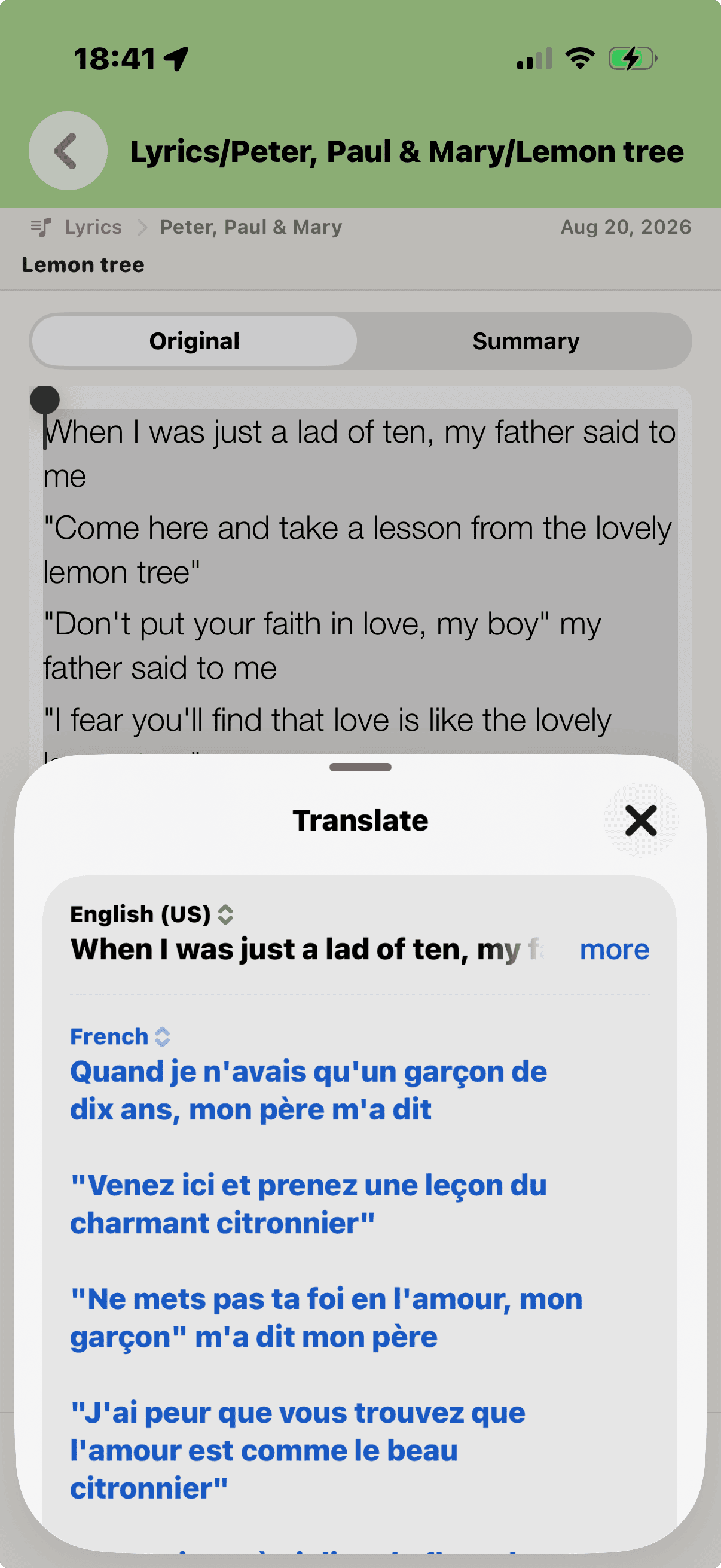
INSIDE SCANNED TEXT
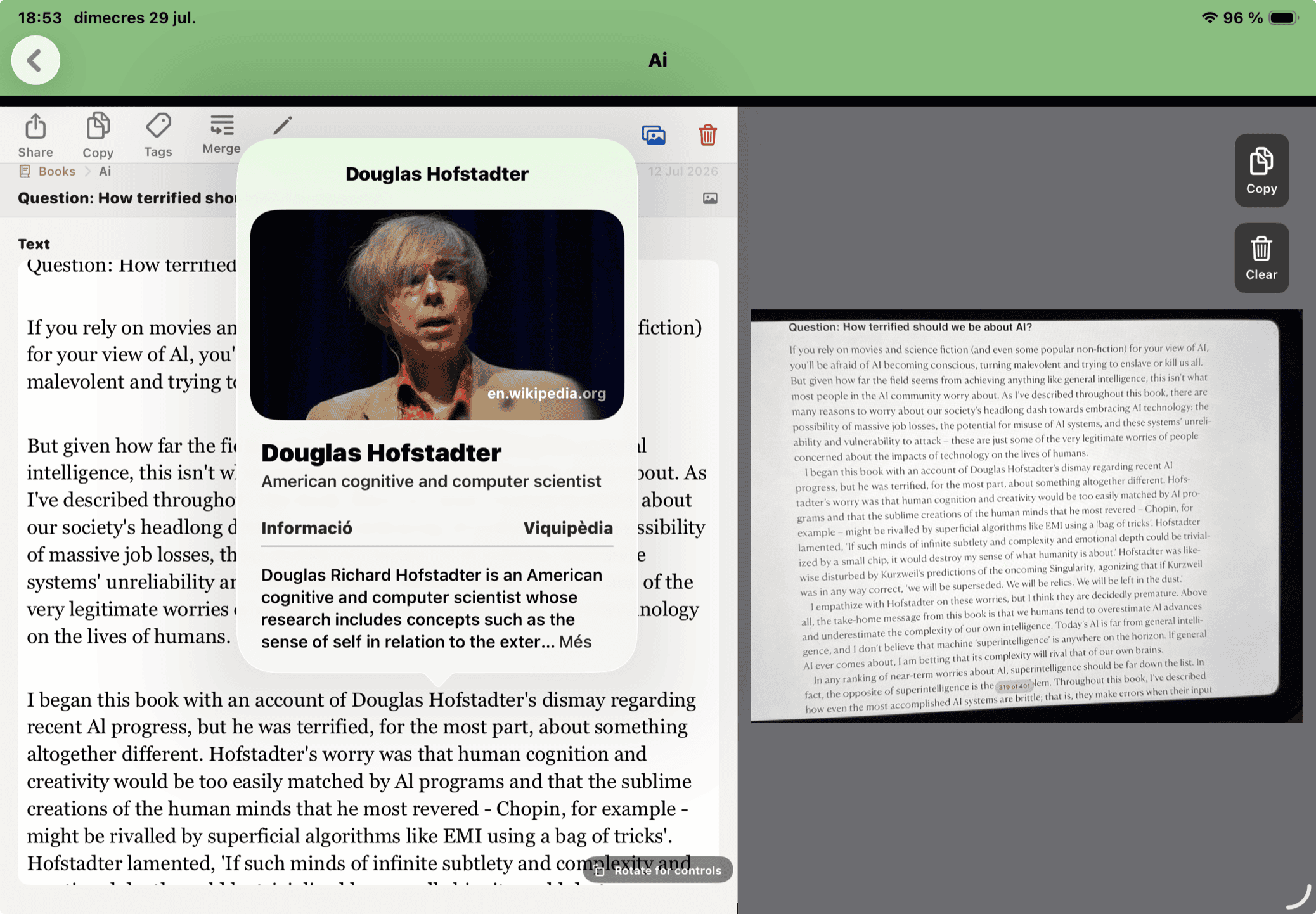
Recognized text remains selectable. The standard iPhone and iPad actions—including Look Up, Translate and Copy—are immediately available without moving the whole Clip into another app.
NEW · APPLE SHORTCUTS
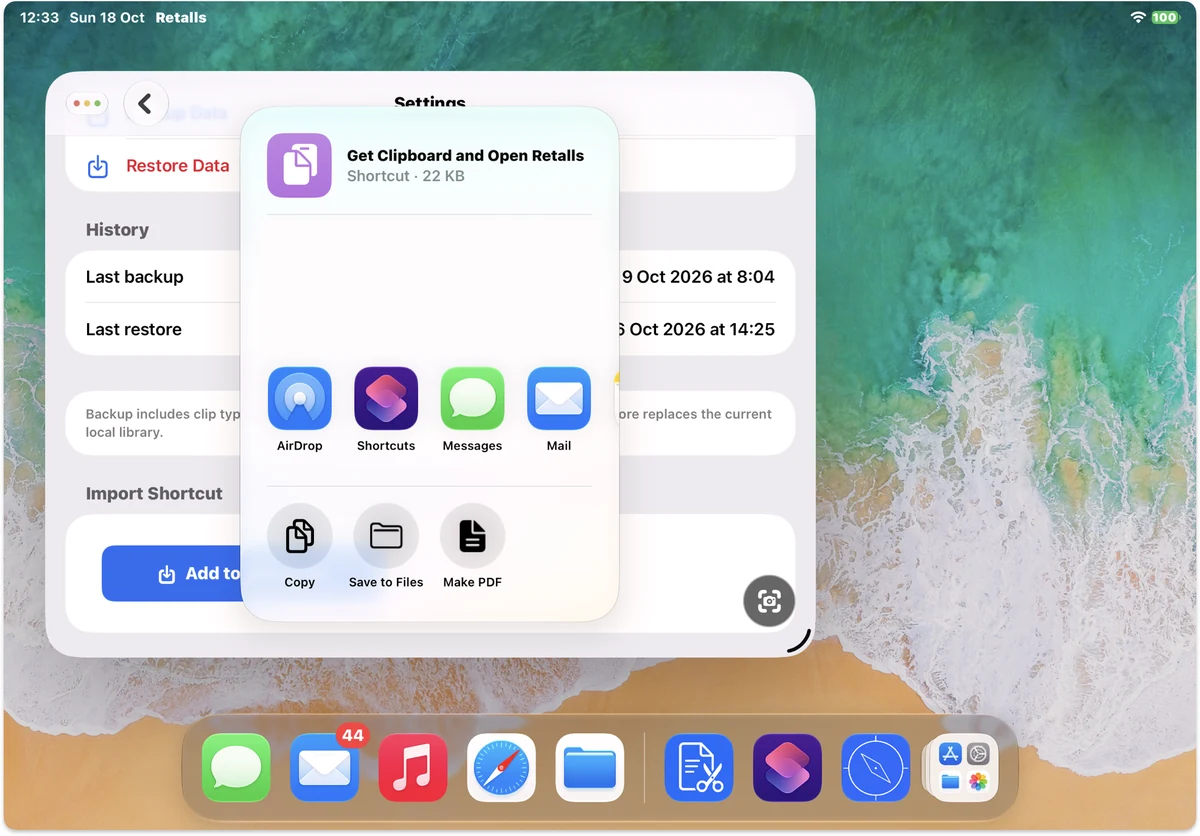
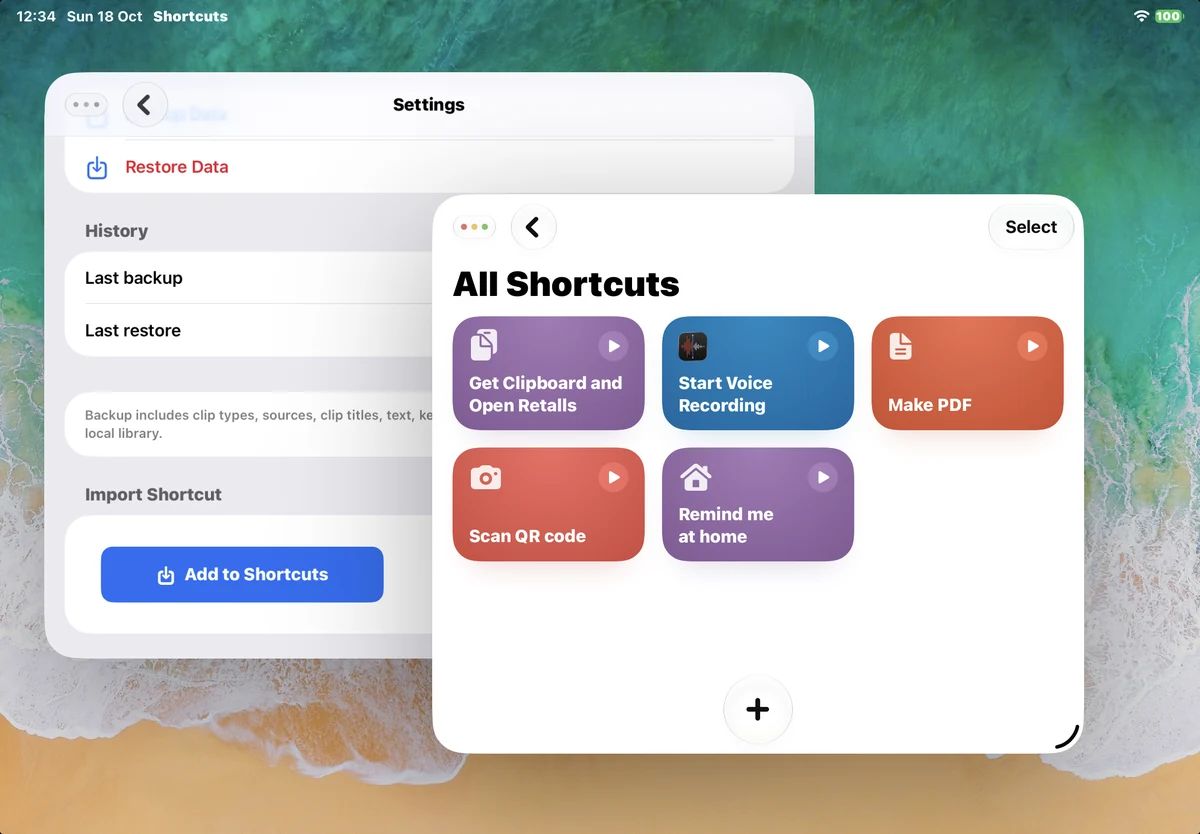
Copy text or an image, then run “Get Clipboard and Open Retalls” in Apple’s Shortcuts app. RETALLS opens and displays the newly created Clip, ready to read or edit.
In RETALLS Settings, tap “Add to Shortcuts”. In the Share Sheet tap on the Shortcuts icon.
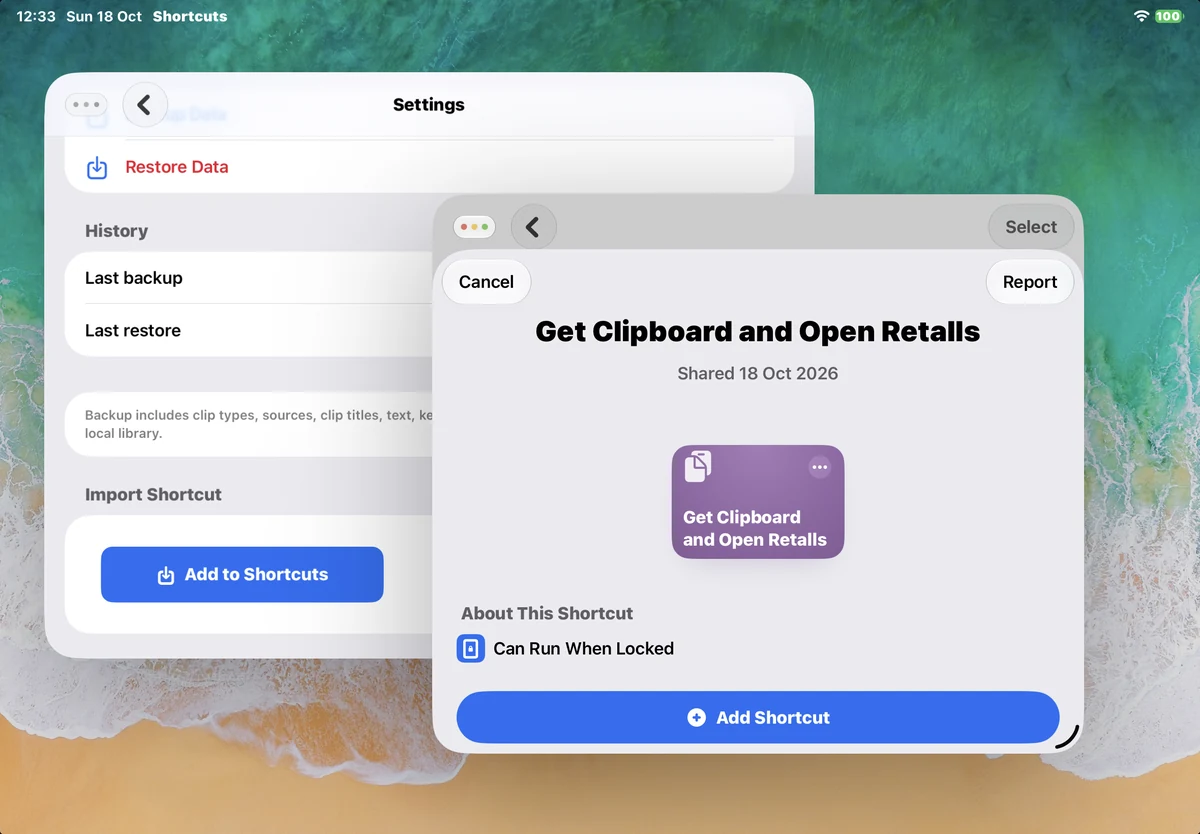
Tap “Add Shortcut“.
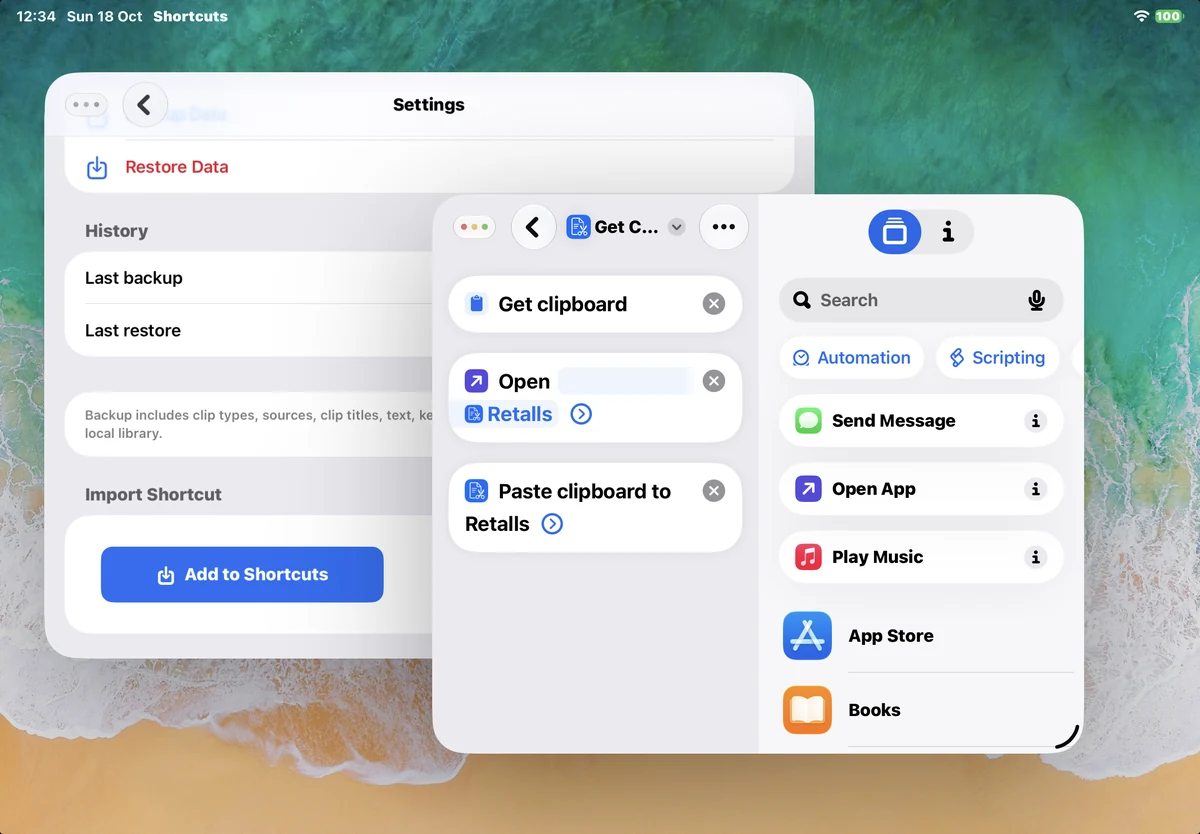
You should see the view with the automated actions.
When you click the back button in the previous view you should see the shortcut installed in the Shortcuts app. Whenever you open the Shorcuts app, click on the arrow to run the shortcut. Of course you need to have some valid either text or an image in your Clipboard. Automatically a clip will be created in RETALLS with that content, even if the app was not open. The clip will be stored in a Type folder named “Pasted from clipboard". Later you can move or copy it to whatever folder you like.
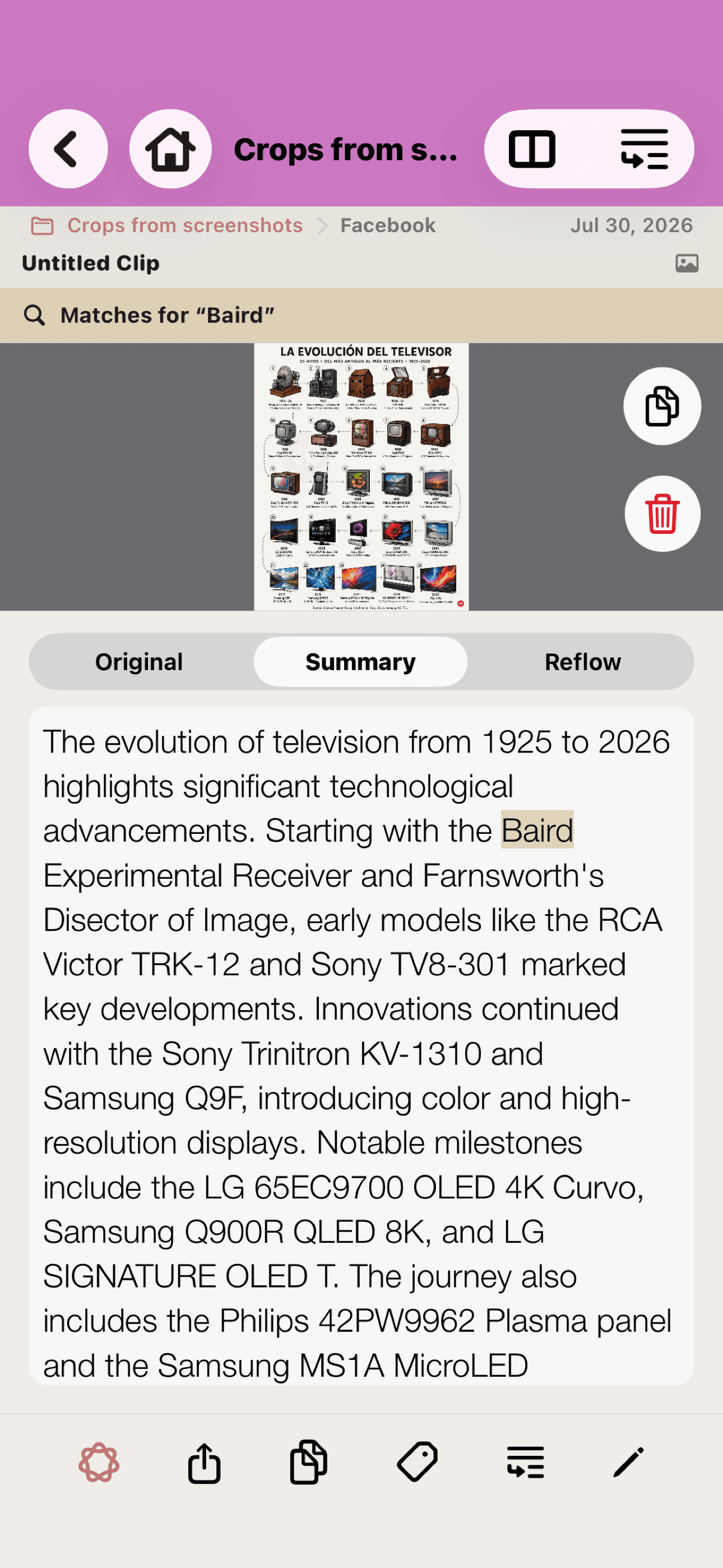
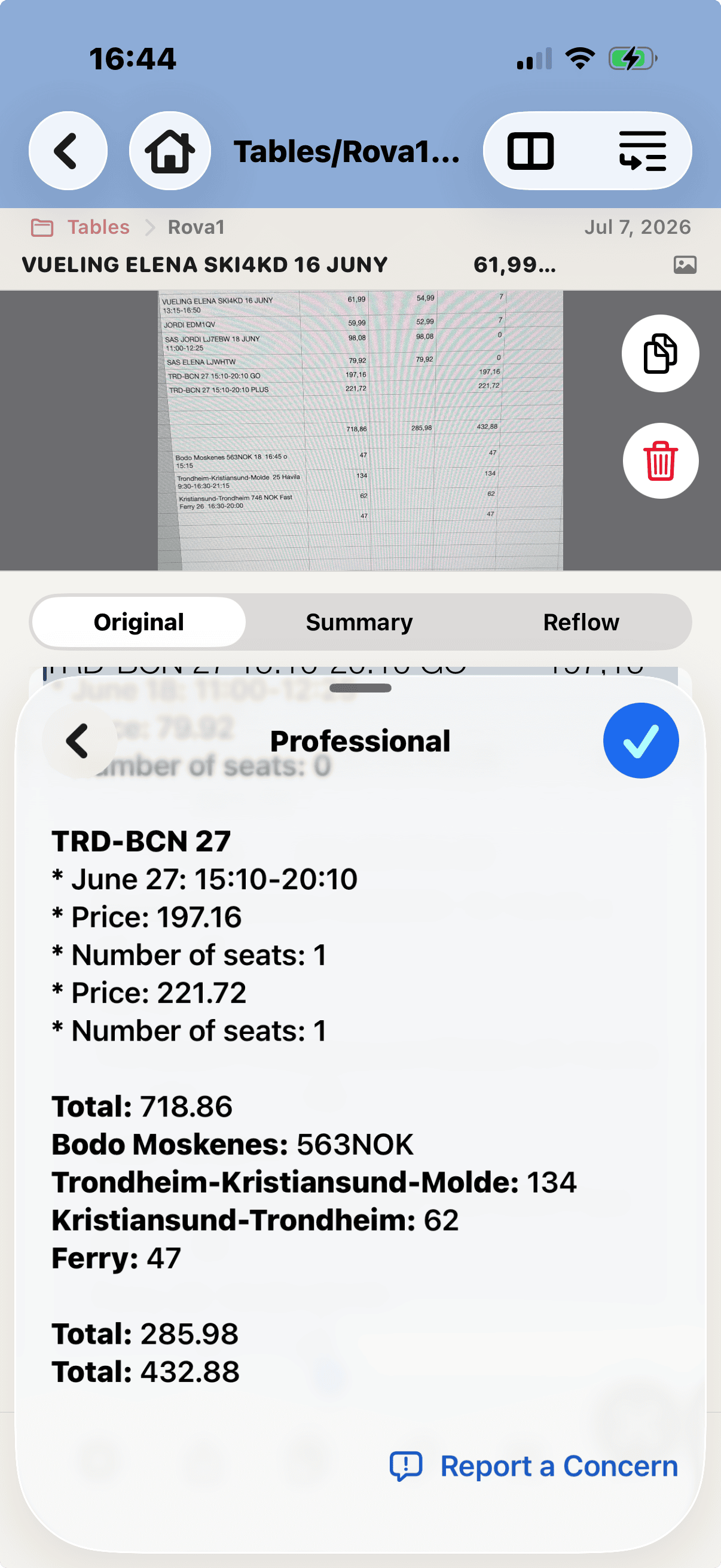
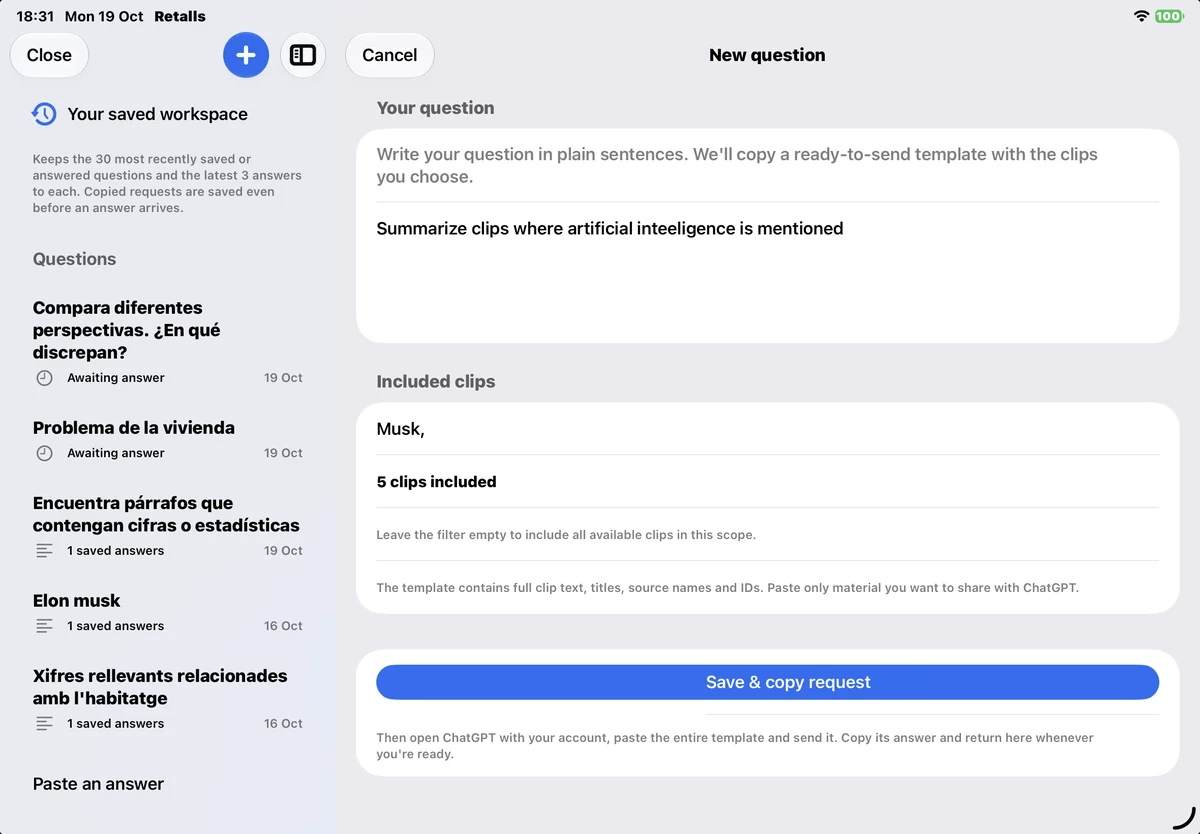
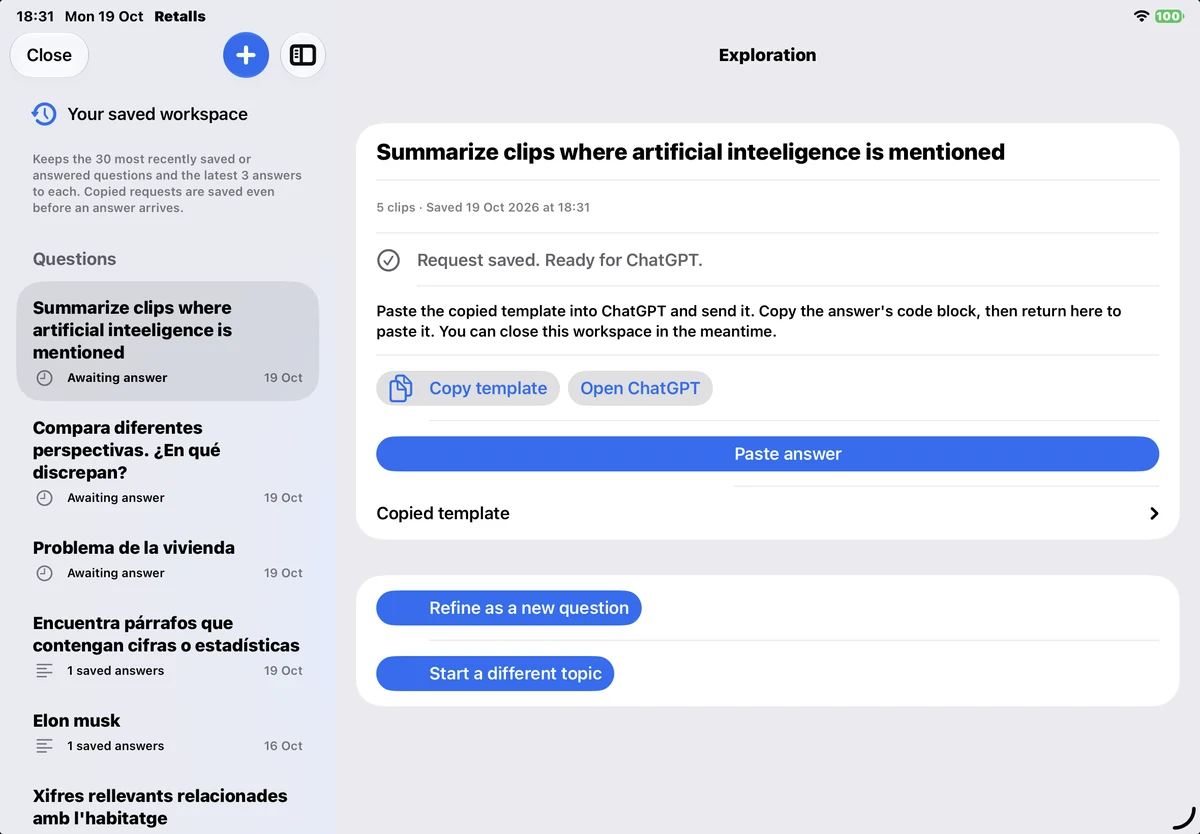
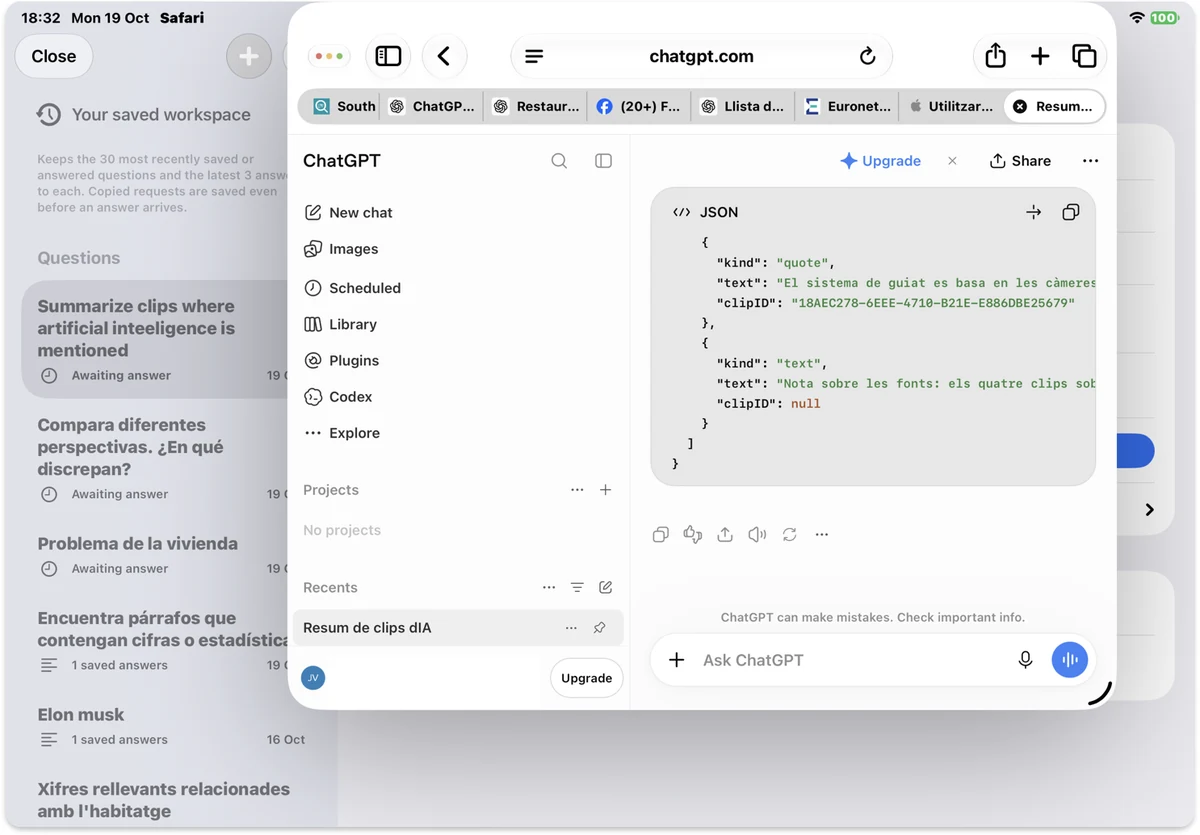
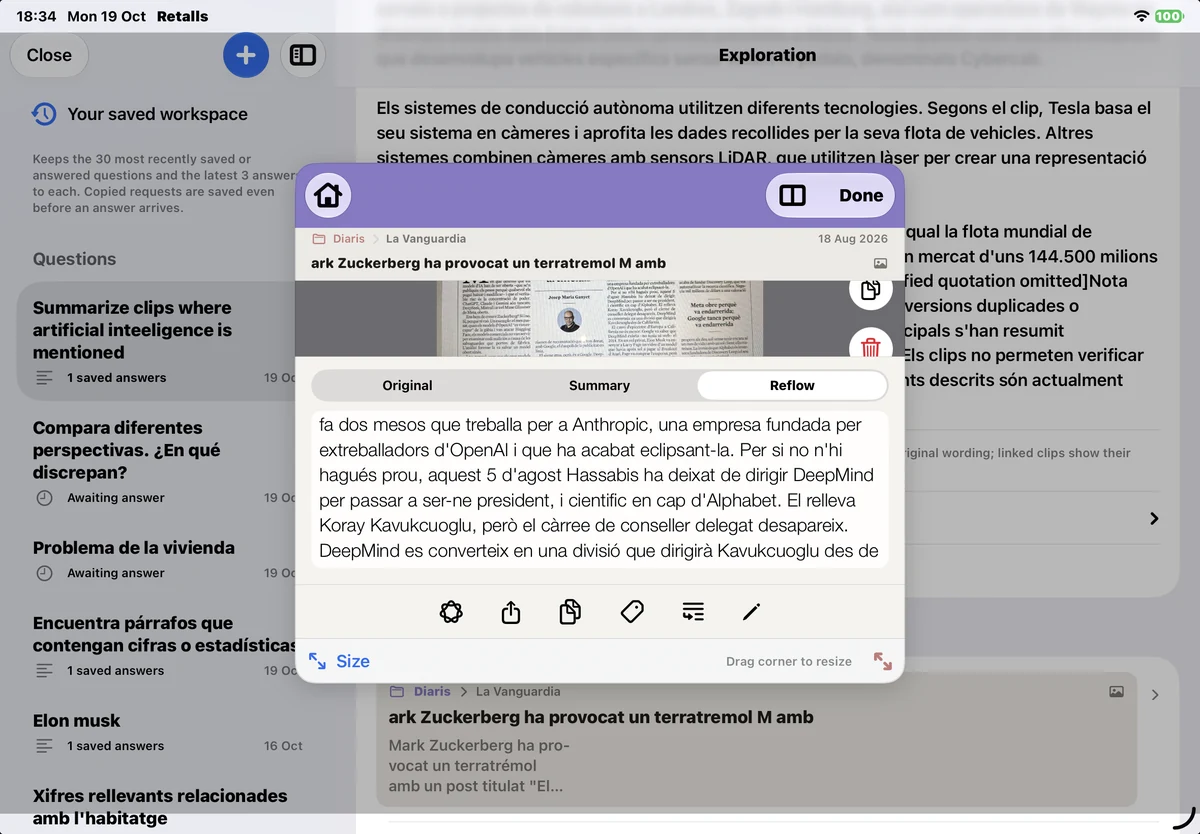
Choose your clips, ask a question and bring the answer back to RETALLS.
Whenever you tap the magnifying glass with a sparkle in RETALLS, the ChatGPT workspace shown below opens. Choose your clips and write your question there.
Select a screenshot to see a larger version.
QUICK REFERENCE
There is no single OCR setting for every physical layout. Start with the closest match; you can keep the image and run OCR again with another profile.
SUPPORT & REFERENCE
RETALLS uses Apple technologies to perform text recognition on your device rather than sending each scanned page to a third-party OCR service. Your Types, Sources, Clips, images and keywords are managed on your device and through the Apple storage and backup services you choose.
Results vary with language, typography, curvature, lighting, image quality and layout. Review important text before relying on it. RETALLS currently works best with Western Latin-alphabet languages.
Share Clips for writing, email, notes, research, archiving or printing. Image annotations can be included in a PDF representation.
If OCR misses text or returns the wrong order: crop more tightly, improve lighting, flatten the page, run Image Cleaner or try another profile. For complex columns, capture smaller parts and Merge them.
When contacting support, include your device model, system version, RETALLS version, what you tried and what happened. For OCR issues, a sample image is especially useful when you are comfortable sharing it.
Support email: info@jordivila.cat · Version: 1.1.0